There are three methods for closing a product in Tourbiz, depending on the context and the number of products involved.
Method 1 — Bulk closure (multiple products over a period)
This is the fastest method for closing several products at once over a date range.
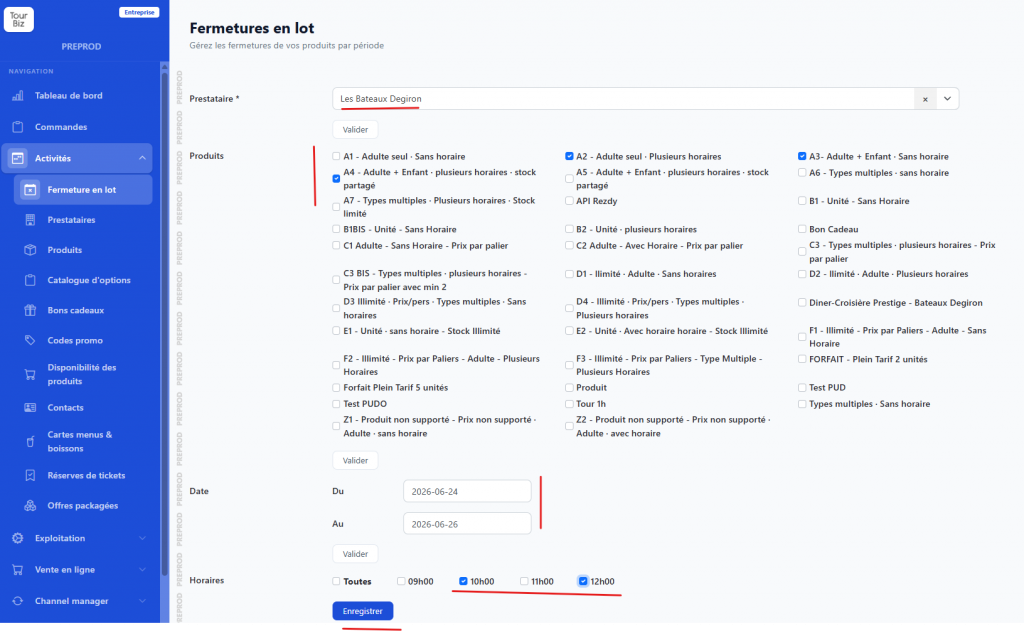
Access: Activity > Bulk closure
Steps
- Select the relevant supplier, then click Confirm.
- Choose the products to close from the list shown, then click Confirm.
- Set the period: enter a start date (From) and an end date (To), then click Confirm.
- Select the time slots to close — check All to close every slot, or select specific times.
- Click Save.
Note: after confirming the period, Tourbiz shows the time slots available for those dates. You only check the ones you actually want to close.
Method 2 — Closing a single product (via the product sheet)
To close a specific product on certain slots or dates.
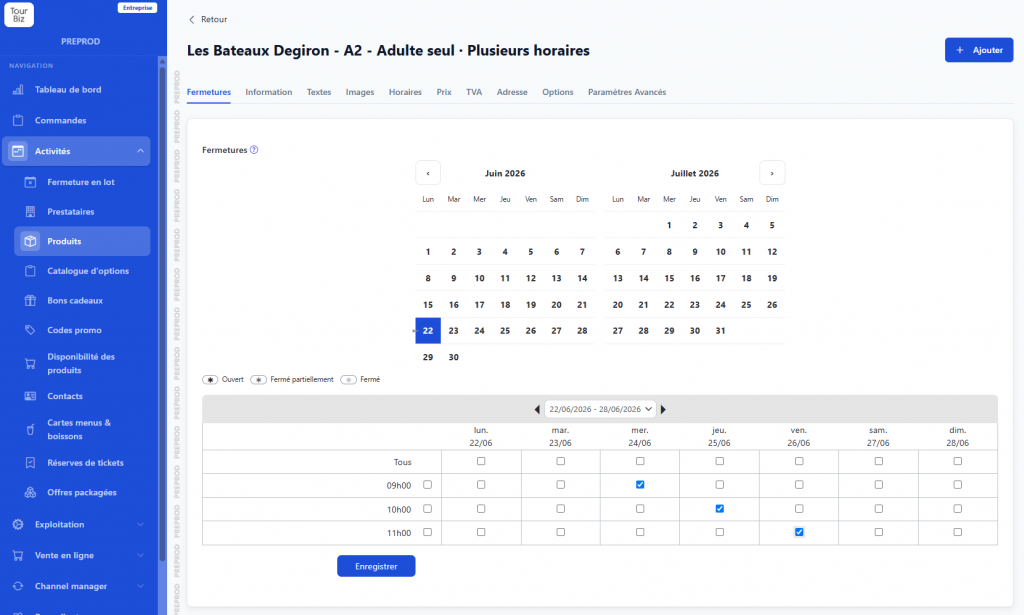
Access: Activity > Products > [your product] > Closures tab
Steps
- Go to the product you want.
- Click the Closures tab.
- A calendar is displayed with a two-week view. Days are shown with a color code:
- 🟢 Open
- 🟡 Partially closed
- ⬜ Closed
- Navigate to the desired week in the table below the calendar.
- Check the boxes for the slots to close (by day and by time). The All row lets you close every slot for a day in one action.
- Click Save.
Method 3 — Closing from the schedule (event with existing bookings)
When an event appears on the schedule and already has bookings, you can close the products directly from the event’s sheet.
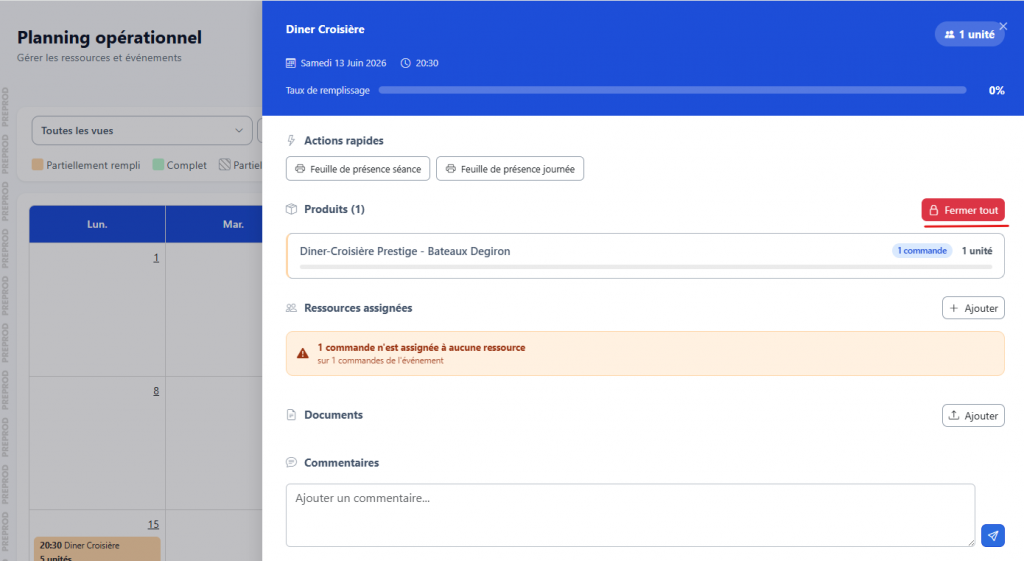
Access: Schedule > [click on an event]
Steps
- Open the relevant event on the schedule.
- In the Products section, click the Close all button (top right of the product list).
- This closes all the products for this event.
Typical use case: an event is already filling up and you need to close it to new bookings without deleting it.
Summary
| Situation | Recommended method |
|---|---|
| Close several products over a period | Bulk closure |
| Close a product on specific slots | Product sheet > Closures tab |
| Close the products of an event with bookings | Schedule > Close all |