In Tourbiz, orders are called Bookings. They centralize all the information related to a sale: the product(s) booked, customer information, payment tracking, and the history of actions taken. You access order management from the side navigation menu, under Bookings.
Overview
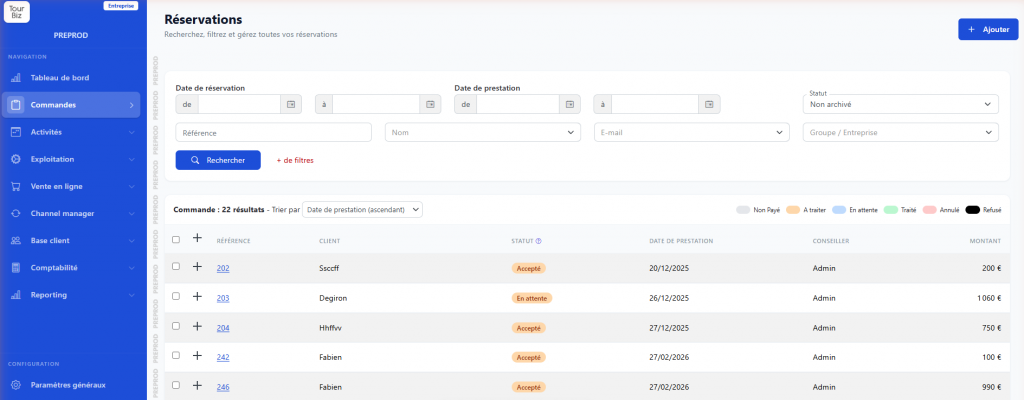
The main page shows the list of all your bookings with, for each one, the key information: the reference (unique number), the customer name, the order’s status, the service date, the assigned agent, and the total amount.
Filter and search
A powerful filtering system lets you quickly find an order. You can filter by booking date, service date, reference, customer name, email, group/company, supplier, product, confirmation number, agent, cart status, payment status, payment type, order type (individual/group), or sales channel.
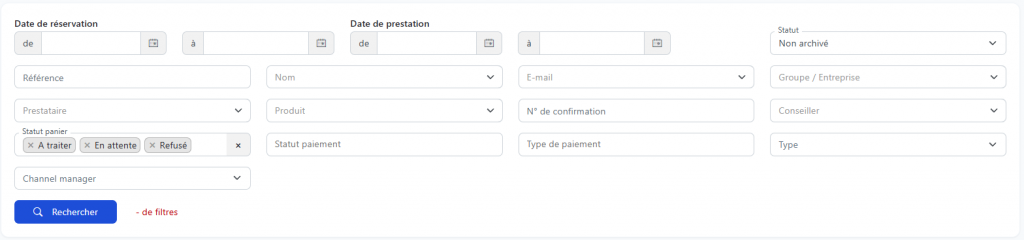
By default, the list shows non-archived orders with the status “To process” or “Pending”. You can sort the results by service date or by payment amount.
Order statuses
Each booking is identified by a color code:
- Unpaid (grey): the order exists but no payment has been recorded yet
- To process (orange): the order is waiting for an action from you
- Pending (blue): the order is being processed, a partial payment may exist
- Processed (green): the order is finalized and fully paid
- Cancelled (pink): the order has been cancelled
- Declined (black): the order has been declined
Creating a new order
Check out our full article on creating an order in Tourbiz.
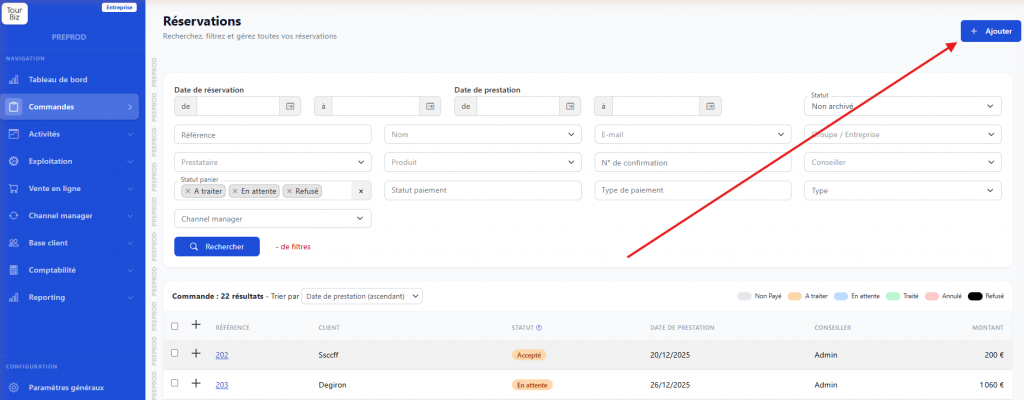
To create an order manually (for example, for a booking taken by phone or in person), click the “+ Add” button at the top right of the list.
Step 1: Select the product
A search form appears with four criteria: Supplier, Product, Partner, and Currency (EUR by default). You can use one or more of these filters, then click “Search” to display the available products.
The results show the list of products (rate options) with their price. If a product is full (no more availability), it appears marked “FULL” and cannot be selected.
Step 2: Choose the date and quantity
Clicking on a product displays a calendar on the right. Select the desired service date. Depending on the product, the system may show a stock alert (“Only X left in stock!”). Then adjust the quantity per participant type (Adult, Child, etc.) using the dropdown.
The total is calculated automatically. Information about cancellation fees may also appear. Once you’re satisfied, click “Add to cart”.
Step 3: Complete the cart and customer information
You’ll land on the order composition page, identified by a reference number and the status “Unpaid”. This page has two main sections.
The Cart section summarizes the selected product(s) with their details (supplier, rate option, date, participants, amount). You can add another product at any time via the “Add a product” button. Additional options are available: applying a promo code, or adding special items (modification fee, cancellation fee, promotion, handling fee, reseller commission).
The Customer section lets you enter the customer’s details: first name, last name, language, email, phone, company, address. A warning message reminds you that you must save a customer before you can proceed to payment.
The Payment section at the bottom of the page shows the financial summary: payment status, order total, total paid, and remaining amount due.
Click “Save” to save the order.
Viewing and editing an existing order
Check out our full article on editing an order in Tourbiz.
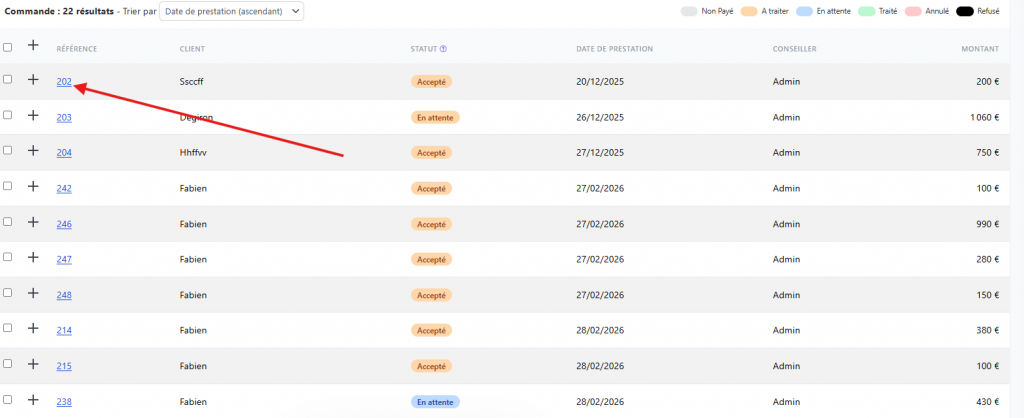
To open an order, click its reference number in the list. The order sheet opens on a new page and is organized into five tabs:
“Order sheet” tab
This is the main view. It’s split into two columns:
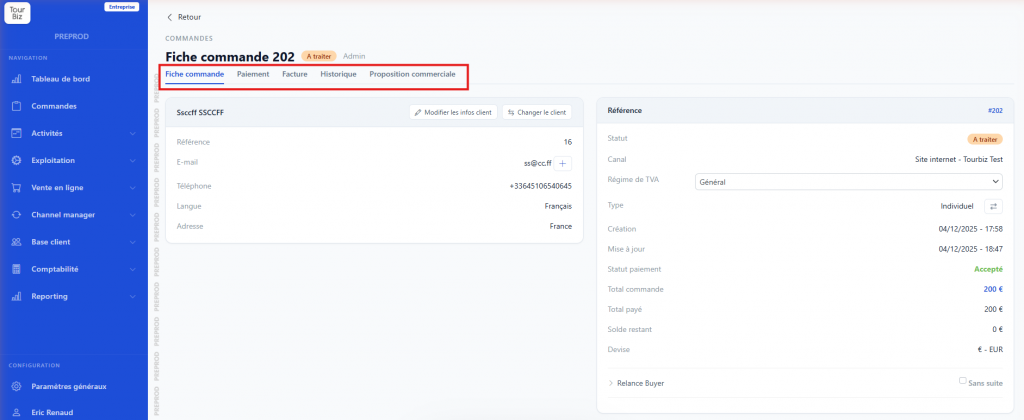
The left column shows customer information: name, internal reference, email, phone, language, address, company, VAT number. Two buttons let you edit the customer’s information or replace them with another customer from the database.
The right column shows the booking summary: order reference, cart status, source channel (website, OTA, etc.), VAT scheme, type (individual or group), creation and update dates, payment status, order total, total paid, remaining balance, and currency. A “Remind buyer” link and a button to send an additional payment request are also available.
Below, the Products section lists each booked service with its individual payment status and amount. For each product, actions are available: Edit (change the date, participants, etc.) and View voucher (access the booking voucher).
A “Sales team comment” field at the bottom lets you note internal information about the order.
“Payment” tab
This tab centralizes all financial tracking. It shows the summary: overall payment status, order total, total paid, and remaining amount due. The payments table lists each transaction with its date, type (Visa, card, Cash, Bank transfer, etc.), status (Accepted, Pending, Declined…), and amount.
Two actions are available at the bottom: “Add a payment” (to record a payment received) and “Add a refund” (to initiate a refund). For accepted payments, a “Refund” button is available next to each line.
“Invoice” tab
From this tab, you can generate an invoice for the order. Just fill in a subject (80 characters max) and an optional additional note, then click “Issue a new invoice”.
“History” tab
This tab tracks every action taken on the order: adding a product, recording a payment, editing, etc. Each entry shows the date, the agent who performed the action, and a descriptive comment. It’s the ideal tool for following the full journey of a booking and knowing who did what and when.
“Sales proposal” tab
This tab lets you create and send a sales proposal (or quote) to the customer directly from Tourbiz. You write a subject and an additional note, then issue the proposal. A “Send to customer” button lets you email it directly from the interface.