Once an order has been created — whether it comes from the website, a channel manager, or manual entry — Tourbiz lets you edit it at any time from its order sheet. This guide walks you through all the available actions, tab by tab.
Summary of available actions
On the Order sheet, you can edit customer information, products (date, time, participants, status), add notes, files, and confirmation numbers, send vouchers, apply or edit a promo code, add extra products, remind the customer, and manage payment requests. From the tabs, you can manage payments and refunds, issue an invoice, view the full history, and generate a sales proposal.
Accessing an order sheet
From the left menu, click Bookings. You’ll land on the list of all bookings. Each row shows the reference, customer name, status, service date, agent, and amount.
To open an order, simply click its reference (e.g.: 203). The sheet opens in a new tab.
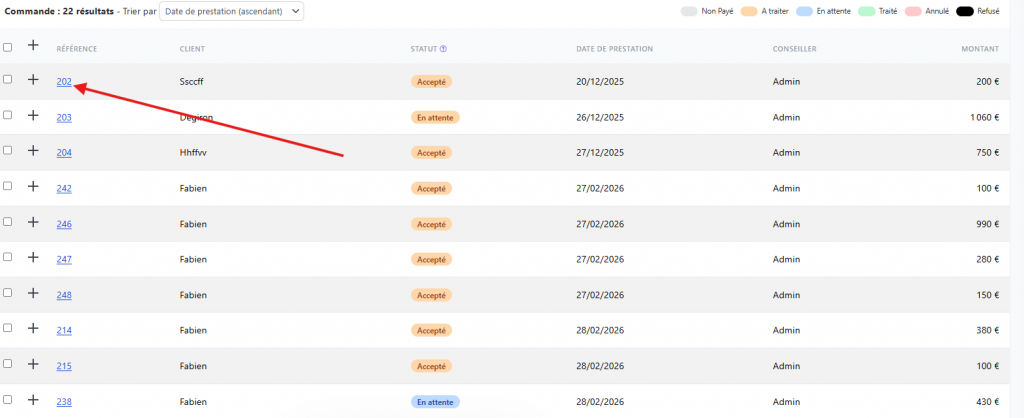
💡 Tip: you can use the list’s filters (date, name, email, supplier, cart status, payment type, etc.) to quickly find a specific order.
Overview of the order sheet
The order sheet is organized into two columns and five tabs at the top.
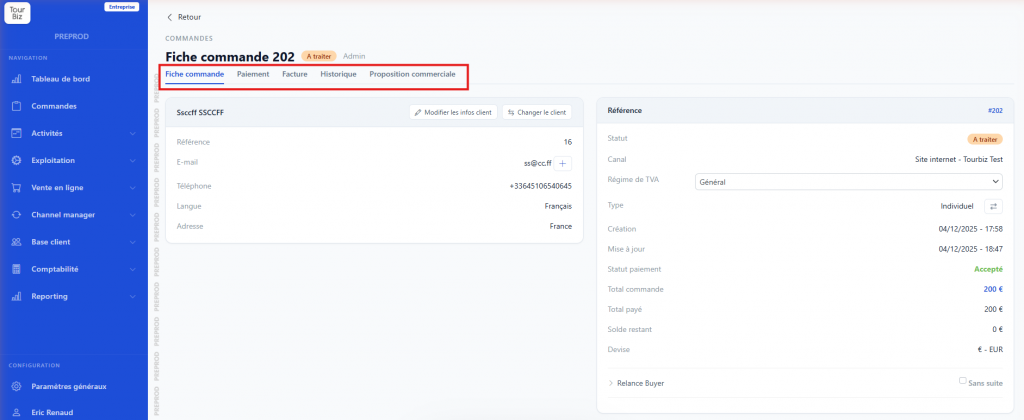
The left column shows the information for the customer attached to the order. The right column shows the Reference panel with the status, sales channel, financial data, and follow-up tools.
The five tabs are: Order sheet, Payment, Invoice, History, Sales proposal.
“Order sheet” tab
This is the main tab, displayed by default.
The Customer section
It shows all the customer’s details (first name, last name, email, phone, language, address, company, VAT). Two action buttons are available:
Edit customer info opens the customer’s record directly in the customer database. You can edit all their personal information there, then save. The changes carry over to the order.
Change customer lets you attach the order to a different existing customer, without losing the order’s data.
The Reference panel
It shows the order number, the overall status (e.g.: To process, Processed, Cancelled), the sales channel (website, offline order, channel manager…), the VAT scheme, the order type (individual or group), the creation and update dates, and the financial summary (payment status, order total, total paid, remaining balance, currency).
You can change the VAT scheme directly from this panel via a dropdown.
Remind buyer is a collapsible section that lets you manage orders awaiting confirmation. There, you can enter the Reason for refusal, check No follow-up to close the reminder, or send communications via the buttons: Reminder email, Promo reminder email, Reminder call, Promo reminder call.
The Send an additional payment request button is useful when a balance is still due: it automatically emails the customer with a payment link.
The Products section
Each product in the order appears as a collapsible row. Click the arrow to expand a product and view its details.
Edit opens the product’s edit page, where you can change the service date, the departure/start time, the quantities per participant category, and the product’s status (e.g.: To process, Processed, Cancelled, Declined). Don’t forget to click Save to confirm your changes.
View voucher opens a preview of the customer voucher as it will be sent.
Confirmation No. lets you manually enter a confirmation number provided by the supplier, then save it.
Note is a free-text field to add an internal note about this specific product, visible only in the back office.
Present is a toggle to switch on the day of the service to indicate that the participant did show up.
Files lets you attach documents to the product (booking vouchers, contracts, etc.) via the Add files button.
At the bottom of each product’s detail, three send buttons are available: Send voucher (to the customer), Send voucher to supplier, Send confirmation request to supplier.
Add a product (top right of the section) lets you add a new product to the existing order, following the same search process as when creating one.
Options
The Options section shows the Promo code applied to the order. You can add or remove one. Clicking Edit also gives you access to Special items (modification fees, etc.) which you can add or remove.
Sales team comment
A free-text field at the bottom of the sheet, saved via the Save button, to leave an internal note visible to the sales team on the order as a whole (distinct from per-product notes).
“Payment” tab
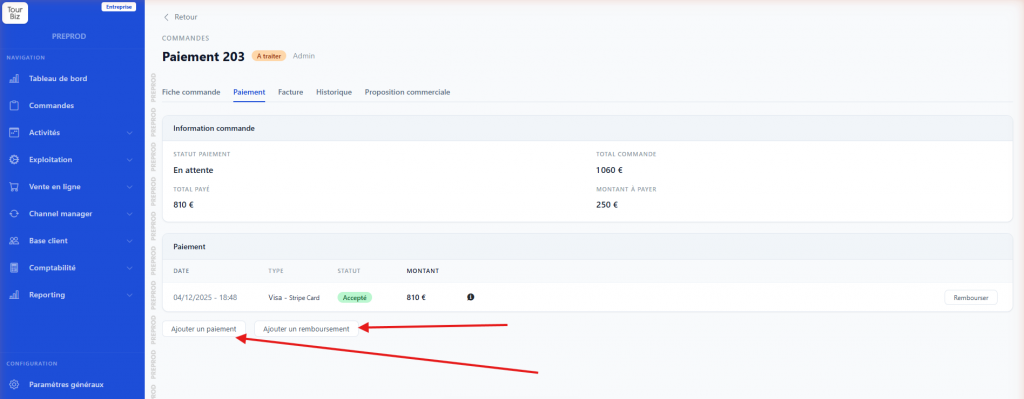
This tab centralizes all of the order’s financial information.
The Order information banner recaps the payment status, the order total, the total already collected, and the remaining amount due.
The Payment table lists each recorded transaction with its date, type (e.g.: Visa – Stripe Card, On site, Bank transfer), status (Accepted, Pending, Declined), and amount. A Refund button is available on each row to initiate a refund.
The Add a payment button lets you record a new payment (partial or full), choosing the payment method, status, date, and amount.
The Add a refund button lets you create a refund line on the order, independently of existing payments.
“Invoice” tab
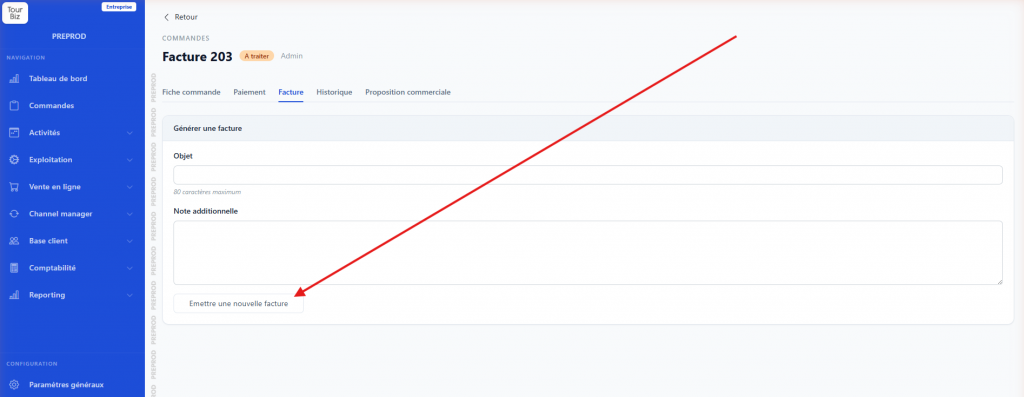
This tab lets you generate an invoice for the order. Fill in a Subject (80 characters max) and an Additional note (500 characters), then click Issue a new invoice.
“History” tab
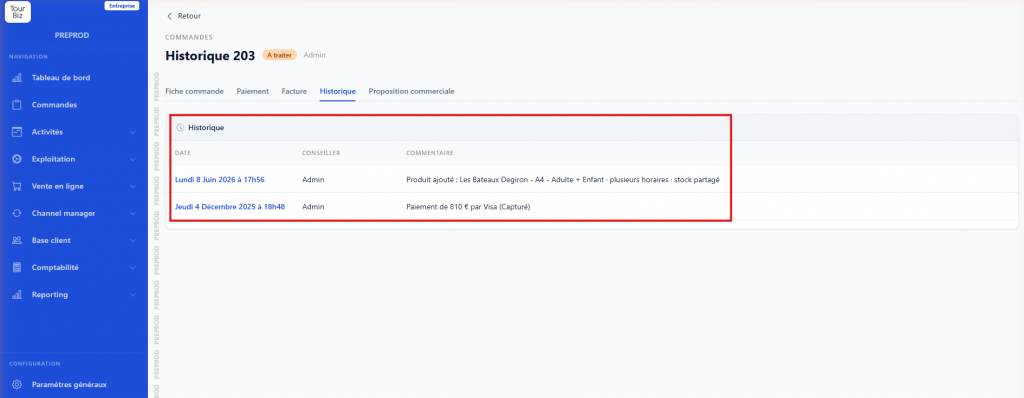
The history automatically tracks every event related to the order: adding or editing a product, recording a payment, sending emails, etc. Each entry shows the date and time, the agent who performed the action, and a descriptive comment.
This tab is read-only and lets you precisely trace an order’s full lifecycle, useful in case of a dispute or for quality follow-up.
“Sales proposal” tab
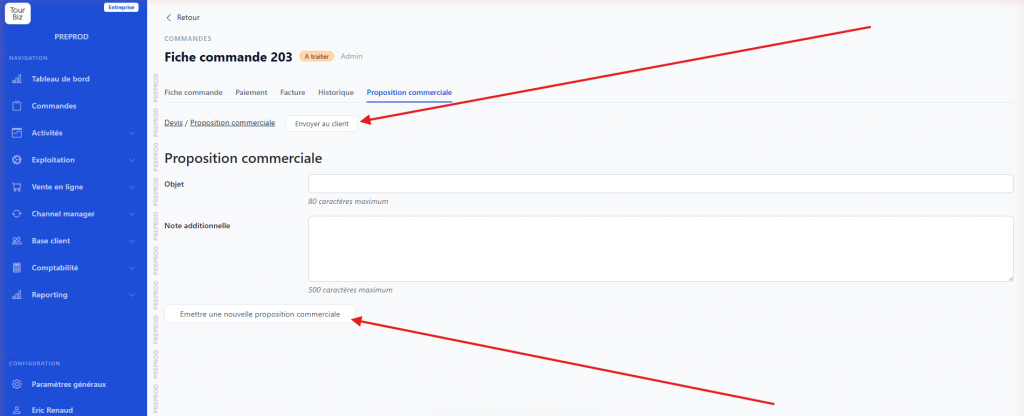
This tab lets you generate a quote based on the products in the order. Enter a Subject and an Additional note, then click Issue a new sales proposal. Once generated, the Quote / Sales proposal link appears at the top of the tab with a Send to customer button to email it directly from Tourbiz.