📌 General overview
The “Additional payment request” feature lets you automatically send the customer an email containing a payment link. This link redirects them straight to your site’s cart, with a summary of their order and the remaining balance due.
Essential prerequisite: Before sending anything, you must have correctly configured the two dedicated emails (see the dedicated section below).
1. Where is the button?
The “Send an additional payment request” button appears automatically on the order sheet, in the “Reference” block on the right, only when the order total is greater than the amount paid.
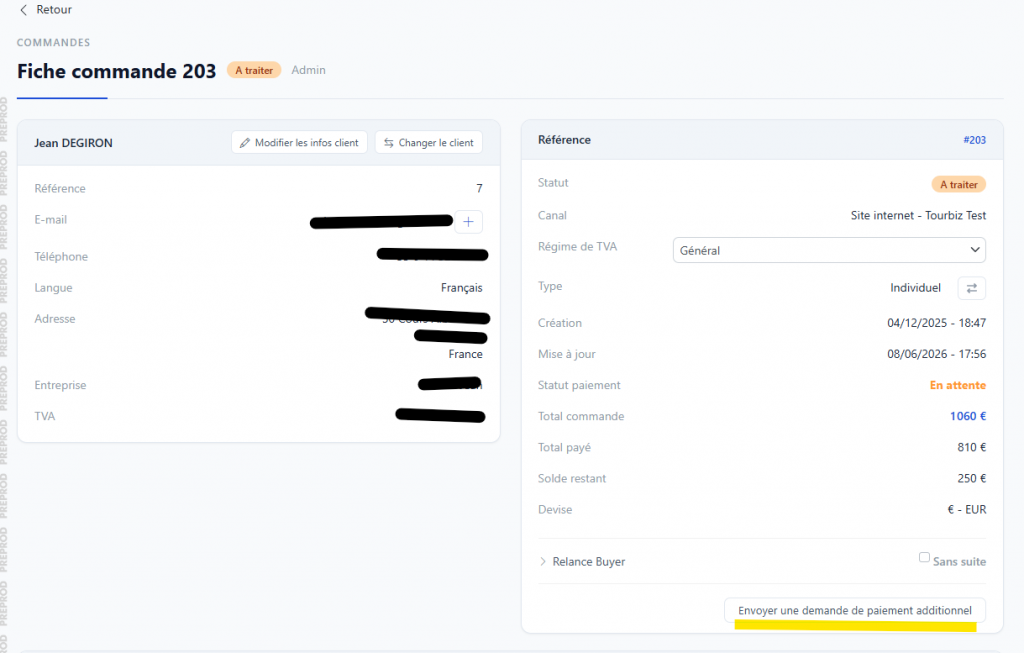
You can check the payment situation directly in the block:
- Order total: total amount due (e.g. €1,060)
- Total paid: what has already been collected (e.g. €810)
- Remaining balance: the difference still due (e.g. €250)
- Payment status: “Pending” → the button is then available
2. The two scenarios
Depending on the payment situation, the email sent to the customer will differ:
Case 1 — No payment has been made yet
→ The CUSTOMER Payment Request email is sent automatically.
This is a first payment reminder, and the customer is invited to finalize their order by paying in full.
Case 2 — One or more payments have already been made
→ The CUSTOMER Order Modification email is sent automatically.
It informs the customer that their order has been modified and that an additional balance is due.
3. ⚠️ Set up the emails BEFORE sending anything
It is essential to configure these two emails before using the feature. Go to:
General Settings → Email
Find and open, one after the other:
- CUSTOMER Payment Request
- CUSTOMER Order Modification
3.1 — “CUSTOMER Payment Request” email
This email is sent when no payment has been collected yet.
Reference content:
# Complete your order

Hello {CUSTOMER_FIRSTNAME} {CUSTOMER_LASTNAME},

We have received your request, here is the key information:

{BASKET_SUMMARY}

To finalize your booking, please complete payment by clicking this link:

[BUTTON Pay for the order](www.EXAMPLE.com/my-cart/?order_token={ORDER_TOKEN})

You will then receive a confirmation by email.

We remain available for any further information.

Have a great day, see you soon!
The {SITE_NAME} team
3.2 — “CUSTOMER Order Modification” email
This email is sent when one or more payments have already been made and an additional balance is requested.
Reference content:
# Order modification

Hello {CUSTOMER_FIRSTNAME} {CUSTOMER_LASTNAME},

You have just made a modification to your order on our site {SITE_NAME}.

You will find below a summary of your updated cart:

{BASKET_SUMMARY}

So that we can confirm this modification, please pay the remaining balance:

[BUTTON Pay for the order](www.EXAMPLE.com/my-cart/?order_token={ORDER_TOKEN})

Once we receive your payment, we will send you your e-ticket by email.

We remain available for any further information.

Best regards,
The {SITE_NAME} team
4. 🔑 The critical tag: the payment link
The following tag is absolutely essential in both emails. It’s what generates the payment button and rebuilds the customer’s cart with the exact amount due:
[BUTTON Pay for the order]({WEBSITE_LINK}/cart/?order_token={ORDER_TOKEN})
Adjust the slug for your site. If your cart page isn’t
/cart/, replace it with the corresponding slug on your site. For example:[BUTTON Pay for the order](www.EXAMPLE.com/my-cart/?order_token={ORDER_TOKEN})
⚠️ Never remove the ?order_token={ORDER_TOKEN} part: this is the parameter that lets the system automatically rebuild the customer’s cart with the right products and the correct remaining amount due. Without it, the link will not work.
Summary of available tags
You can enrich your emails using the following tags:
| Tag | Description |
|---|---|
{CUSTOMER_FIRSTNAME} | Customer’s first name |
{CUSTOMER_LASTNAME} | Customer’s last name |
{SITE_NAME} | Your site’s name |
{WEBSITE_LINK} | Your site’s base URL |
{BASKET_SUMMARY} | Cart summary |
{ORDER_TOKEN} | Unique order token (required for the link) |
To learn more about all the available tags, see the emails tutorial.
5. Send the request
Once the two emails are correctly configured:
- Open the relevant order sheet
- Check that the remaining balance is indeed greater than zero
- Click the “Send an additional payment request” button (bottom right of the Reference block)
- The system automatically sends the appropriate email based on the payment situation
- The customer receives an email with a clickable button that redirects them to their cart, ready to be paid