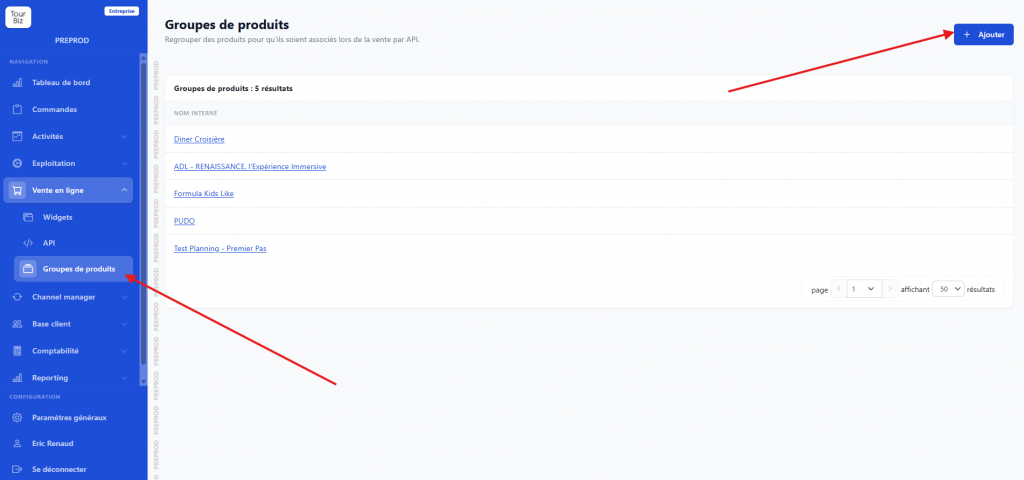
Product groups bring several products together under a single set. Beyond how to create them, what matters most is understanding that they serve two quite distinct purposes, which don’t have the same goal.
First purpose: creating events/services on the schedule
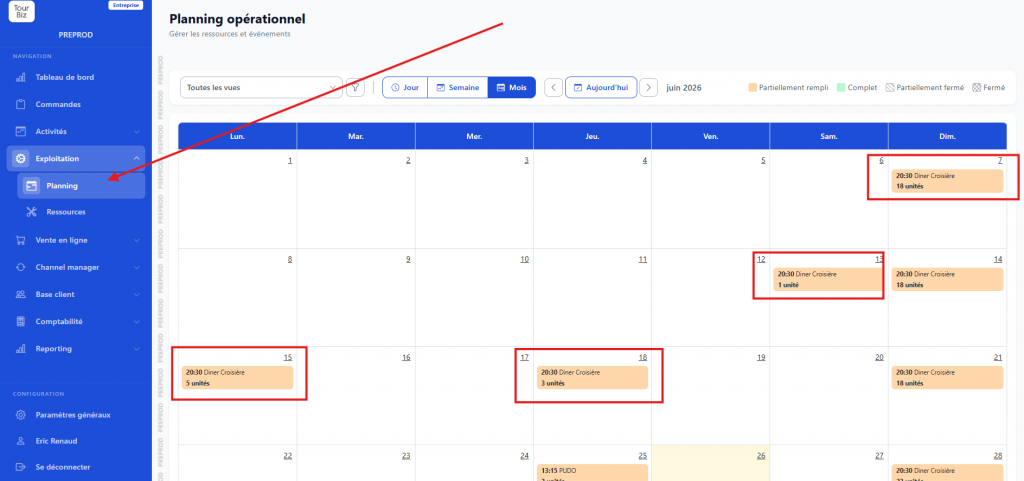
The first use of a product group is to form an event (or service) that will appear on the operations schedule. A single event can indeed bring together several products: for example, one product for individual customers and another for groups, both managed together. As soon as a booking falls on one of these products, the event shows up on the calendar, where you can manage orders, the attendance sheet, opening/closing products, resource assignment, and documents. This is covered in detail in the article dedicated to the schedule.
Second purpose: distributing a “parent product” via the API to distributors
The second purpose relates to distribution. Some distributors like to receive a “parent” product that groups several sub-products together, so they can present them on a single booking page. If you don’t group your products under a product group, these distributors will create as many pages as products pushed, which fragments the offer and hurts readability.
Take an example. Imagine a bungee jumping supplier offering several packages at the same bridge: solo jump, solo jump with video, double jump, and tandem jump. Without grouping, the distributor shows four separate pages. By creating a product group that brings these four packages together, then pushing it to the distributor, they can display all the packages on a single booking page. The customer then sees a single, clear offer, with the choice of package made at the time of booking.
This approach works with some distributors, but not all. Platforms like Funbooker or Cap Adrénaline like this parent-product principle. Conversely, other OTAs don’t accept it at all: this is the case, for example, with GetYourGuide and Viator, which expect products to be pushed individually. So it’s always important to ask the distributor what they prefer before configuring distribution.
Where this is configured: OTA connections
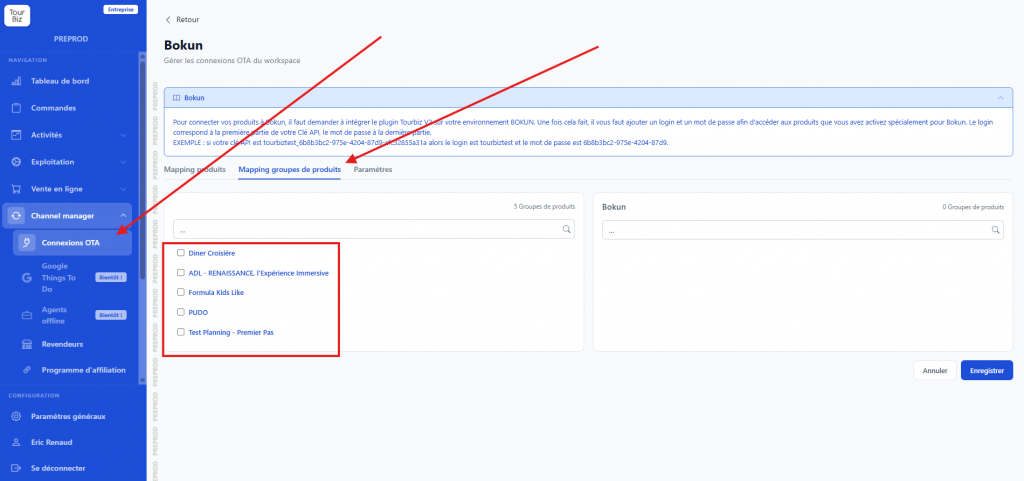
Distribution is managed in Channel manager › OTA connections. The page lists all your connected distributors (Bokun, Ceetiz, Civitatis, GetYourGuide, Klook, Musement, Viator, etc.) along with the number of products pushed to each.
When you open a connection, you’ll find two complementary distribution tabs. The Product mapping tab lets you push individual products: one column lists the available Tourbiz products and another shows those already present in the distributor’s feed, which you check to add them. The Product group mapping tab follows exactly the same logic, but for your groups: you check the product groups you want to send to the distributor. So this is where the choice between pushing individual products or a parent product actually happens, depending on what each distributor accepts and prefers.