Basic principles
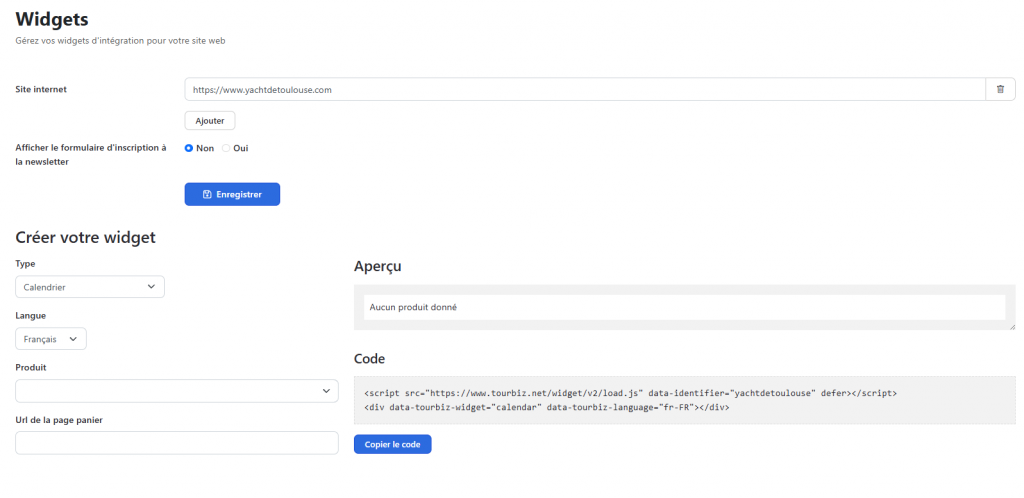
Access the section: /admin/retailer/widget
Authorizing a website to use widgets
First, you need to declare the website(s) authorized to display your widgets. This is a security measure: only the domains you’ve explicitly added will be able to load and display your widgets. This prevents anyone from copying your code and using it on a third-party site.
You can add several sites: for example your production site, a staging environment for testing, or even several sales sites if you distribute your products across different platforms.
Newsletter sign-up form
The “Show newsletter sign-up form” option (Yes / No) adds a checkbox to the Cart widget. When a customer checks this box during purchase, their consent is recorded in your customer database (“Newsletter: Yes/No” column). This lets you feed a marketing automation tool like Brevo for your email campaigns, either by export or via a direct connection between Tourbiz and your marketing automation tool.
A note for developers: scripts vs. iframes
Tourbiz widgets are not iframes. They are JavaScript scripts that inject directly into your page’s DOM. This has several important advantages:
- CSS inheritance: the widget automatically picks up your site’s styles (fonts, colors, buttons…), ensuring consistent visual integration with no extra layer to manage.
- Native JavaScript interaction: the widget can communicate with your page (events, tracking, analytics) like any native component.
- No dynamic height issues: unlike iframes, the height naturally adapts to the content without extra JavaScript.
Creating a widget
Calendar widget
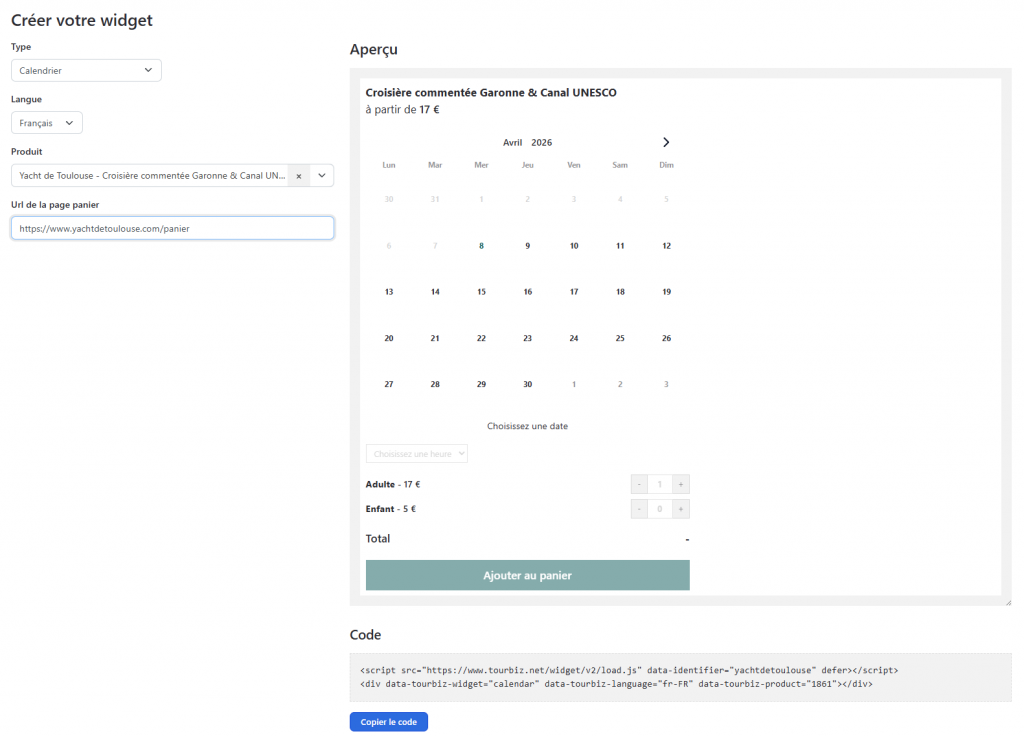
This widget shows an availability calendar for a given product, with date, time, and quantity selection.
Steps:
- Select the “Calendar” type from the dropdown.
- Choose the display language.
- Select the relevant product — a preview appears immediately on the right.
- Fill in the cart page URL (e.g.:
https://www.yoursite.com/cart). This URL is essential: it’s the page the customer is redirected to after clicking “Add to cart,” and it’s where the Cart widget must be embedded. - Copy the generated code and embed it in your page.
Product not showing up in the list? Check that you’ve enabled it under the Online Sales > API tab. Only products enabled in that tab are available via widgets and the API. This opt-in step lets you keep certain products “offline” — not distributable online — while still keeping them in your internal catalog.
Cart widget
This widget displays the shopping cart and lets the customer complete their order.
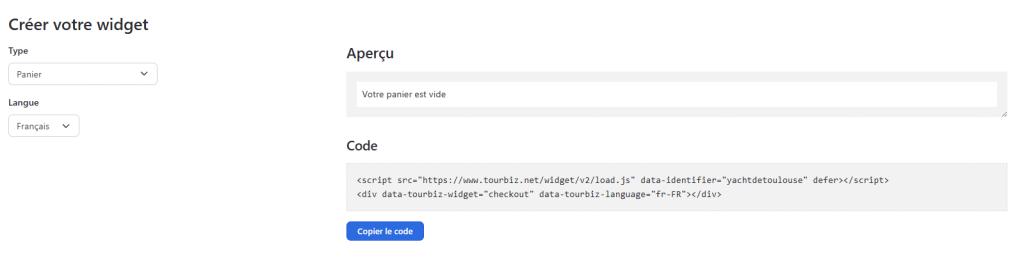
Steps:
- Select the “Cart” type.
- Choose the language matching the page it will be embedded on.
- Copy the generated code and paste it directly onto your cart page.
That’s it! The widget automatically retrieves the items added from the Calendar widget.
Redeem a gift voucher widget
This widget lets your customers enter a gift voucher reference to use it during a purchase.
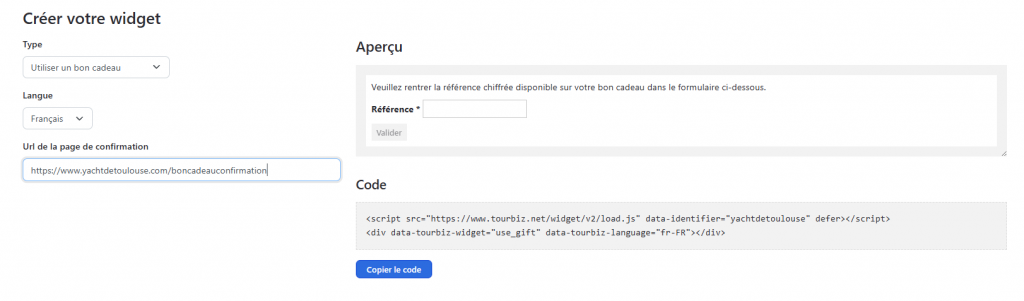
Steps:
- Select the “Redeem a gift voucher” type.
- Choose the language.
- Fill in the confirmation page URL (e.g.:
https://www.yoursite.com/giftvoucherpurchased). This URL is required: it’s the page the customer is redirected to once their gift voucher is validated. - Copy the generated code and embed it on the dedicated page of your site.
Product list and calendar widget
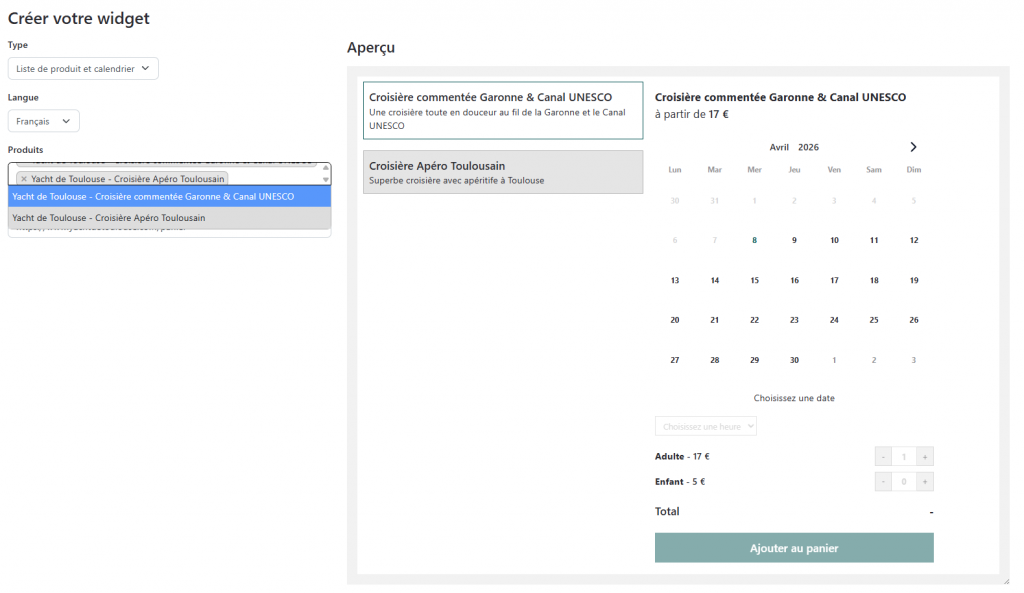
This widget combines a product list with an interactive calendar. It’s ideal when you want to offer several products on the same page and let the user choose.
How it works:
- A list of products appears on the left.
- When the user clicks on a product, the calendar on the right updates automatically to show that product’s availability.
Steps:
- Select the “Product list and calendar” type.
- Choose the language.
- Select the products to include (multiple selection possible).
- Fill in the cart page URL.
- Copy the generated code and embed it on your page.
Summary
| Widget | Required URL | Product selection |
|---|---|---|
| Calendar | ✅ Cart page URL | 1 product |
| Cart | ❌ | — |
| Redeem a gift voucher | ✅ Confirmation page URL | — |
| Product list and calendar | ✅ Cart page URL | Several products |