This article explains how to select products from your Tourbiz catalog to publish on the Funbooker sales channel, via the Channel Manager module.
Prerequisites
- Have a Funbooker OTA connection already set up in your Tourbiz workspace.
- Have access rights to the Channel manager module.
4 steps to add products to your Funbooker OTA in Tourbiz
1. Open OTA connections
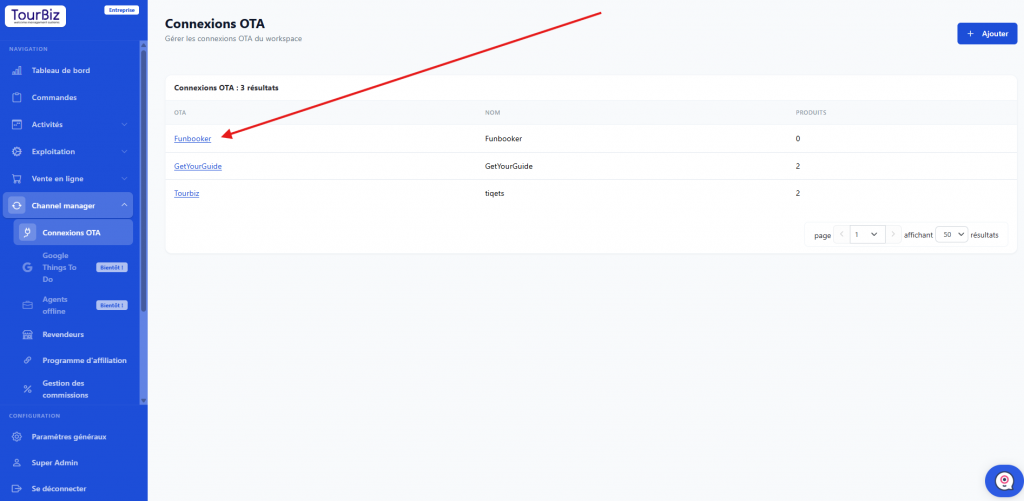
In the left menu, click Channel manager > OTA connections.
You’ll land on the list of active connections (for example Funbooker, GetYourGuide, Tourbiz), each showing the number of products currently published.
2. Open the Funbooker connection
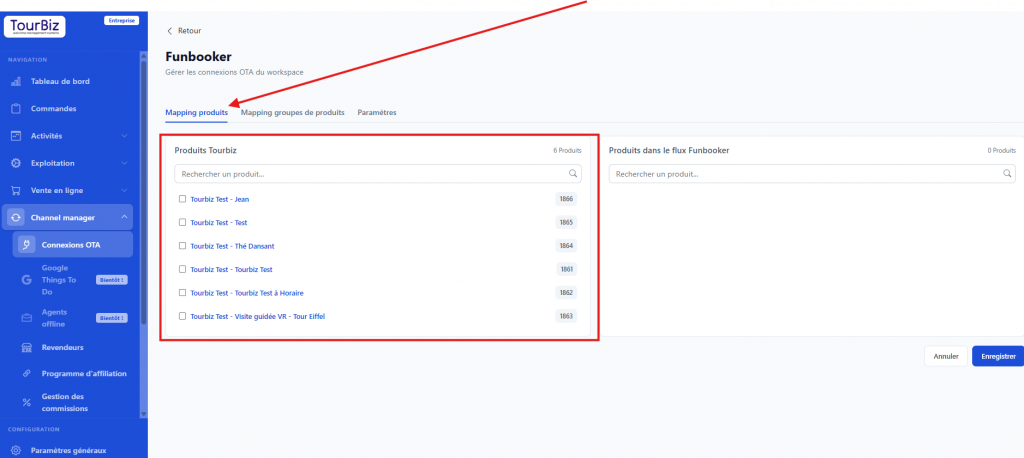
Click Funbooker in the list. You’ll land on the connection sheet, with three tabs:
- Product mapping (active tab by default)
- Product group mapping
- Settings
3. Select the products to add
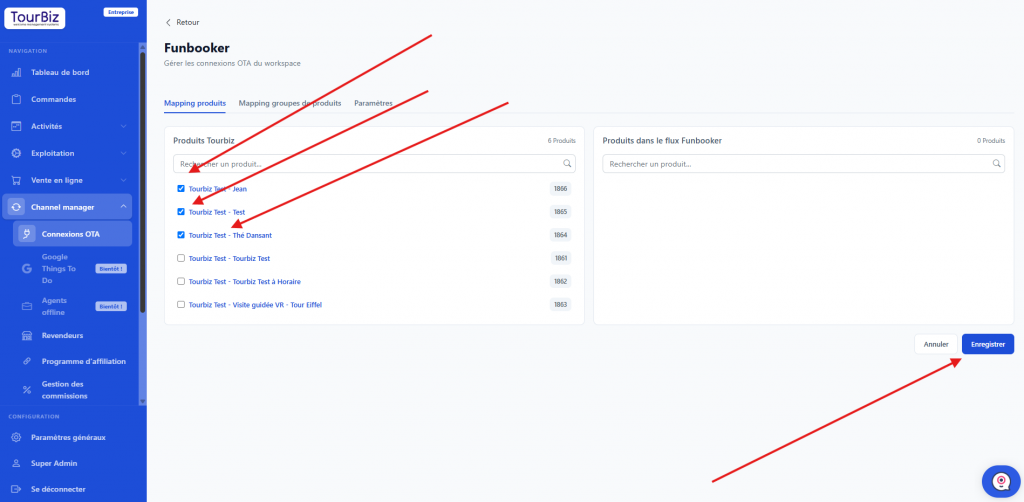
On the Product mapping tab, the screen is split into two columns:
- on the left, Tourbiz Products: the list of all your products, each with a checkbox (use the search bar above if your catalog is long);
- on the right, Products in the Funbooker feed: the products currently published on this channel.
Check the box next to each product you want to add to the Funbooker feed.
4. Save
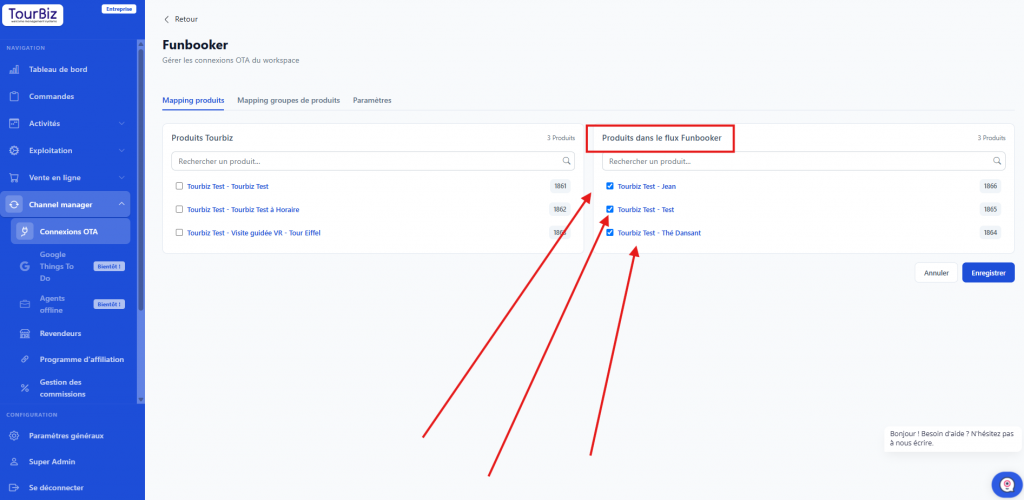
Once you’ve made your selection, click the blue Save button at the bottom right of the screen to confirm adding the products to the Funbooker feed.
The Cancel button next to it lets you discard the changes in progress without saving them.
Note
- The Product group mapping tab lets you do the same operation at the product group level rather than product by product.
- The Settings tab groups the general configuration specific to the Funbooker connection.