This procedure is done from the client’s Tourbiz admin, in the Channel manager module. For GetYourGuide, no API key is needed: you just need to assign a commission group and select the products to send to the feed. The logic is the same regardless of the client; only the product names and commission rate change.
Step 1 — Start adding the OTA connection
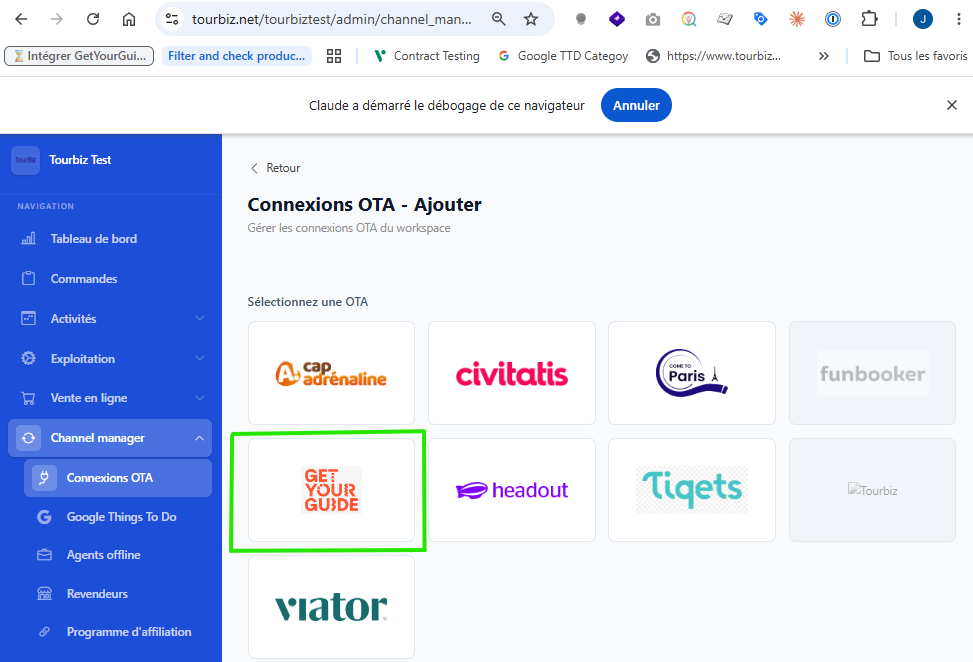
In the left menu, open Channel manager › OTA connections, click Add, then select GetYourGuide. You’ll land on the configuration page with a required “Commission group” field. No API key is requested for this OTA.
Step 2 — Check whether a suitable commission group already exists
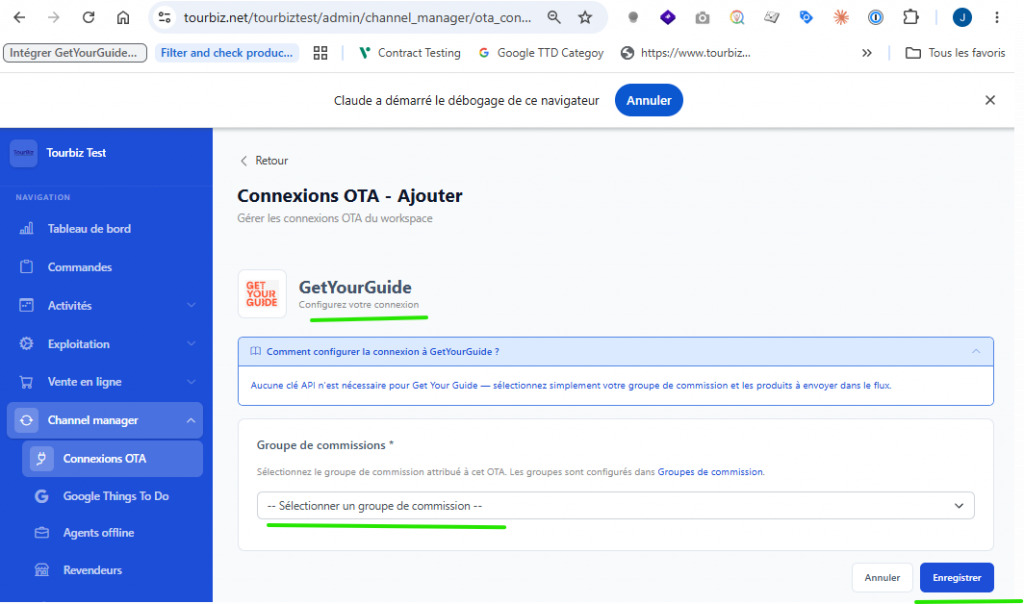
Open the “Commission group” dropdown. If a group matching the client’s GetYourGuide agreement already exists, select it and skip straight to step 4. Otherwise (the most common case on first setup), create one via step 3.
Step 3 — Create the commission group
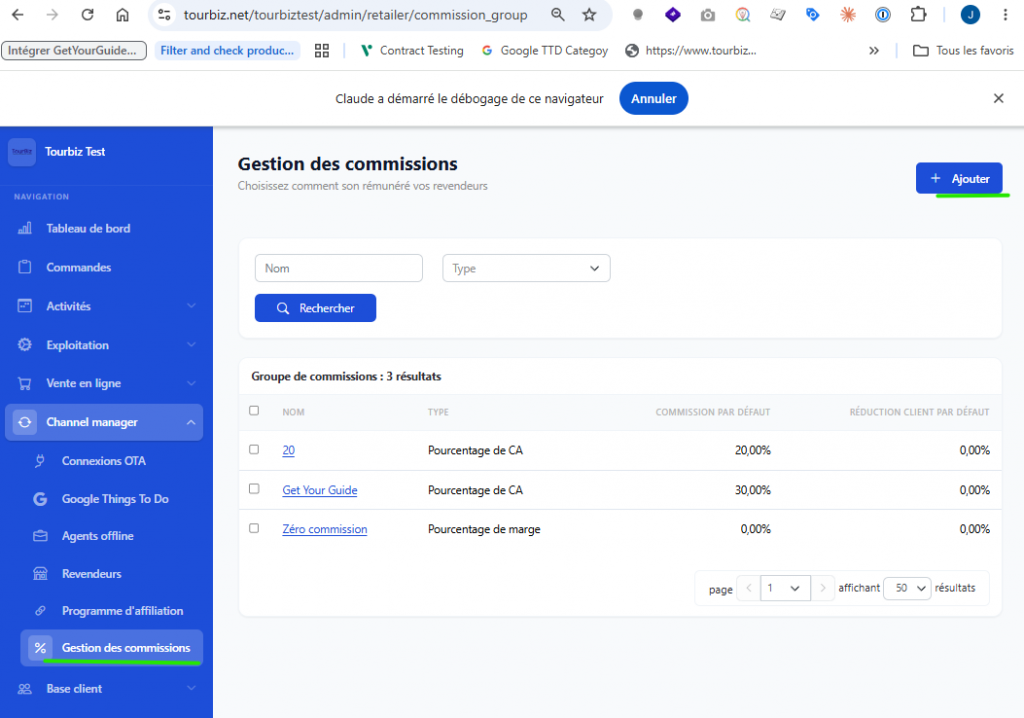
Go to Channel manager › Commission management, click Add, and fill in: a clear Name (e.g. “GetYourGuide”), the Type (“Margin percentage” in most cases), the Default commission in % based on the agreement negotiated with GetYourGuide for this client, and the Default customer discount (usually 0%). Click Save: the group becomes available across the whole workspace.
The commission rate isn’t universal: it depends on each client’s contract with GetYourGuide. Ask for it before creating the group, or set a placeholder value to correct later.
Step 4 — Assign the group to the connection
Go back to the GetYourGuide connection page (OTA connections), select the desired commission group from the dropdown, then click Save. The connection is then created and the mapping tabs become accessible.
Step 5 — Assign the products
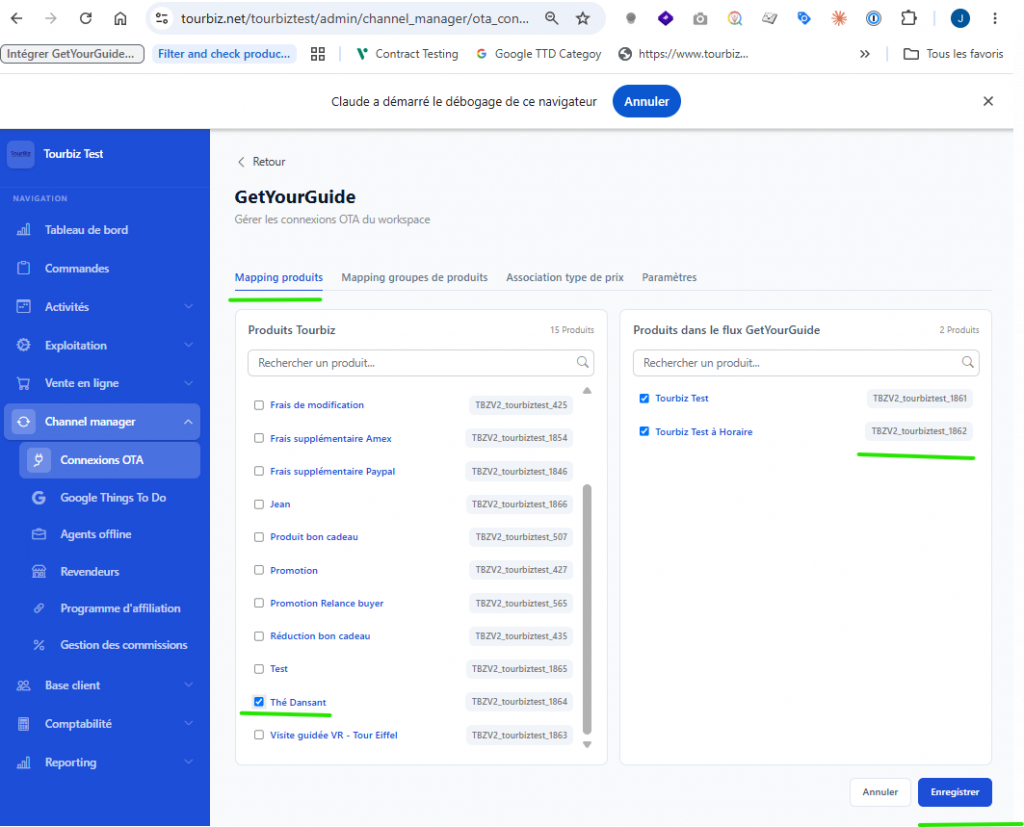
In the “Product mapping” tab, the left column lists the client’s Tourbiz products and the right column shows the products actually sent to the GetYourGuide feed. Check the actually sellable products you want to publish (the activities/tours), avoiding side items like fees, credits, insurance, or gift vouchers. Click Save: the checked products move into the “Products in the GetYourGuide feed” column.
Step 6 On the GetYourGuide side — create the product (prerequisite for mapping)
Before you can map anything in Tourbiz, the product must exist on the GetYourGuide side. In the GetYourGuide back office, choose the “WMS” channel manager, then create your product. Once the product has been created and validated by GetYourGuide, it becomes available for mapping from Tourbiz (next step).
Good to know about GetYourGuide’s structure: a GetYourGuide product is a PRODUCT PAGE that can contain several products, which GetYourGuide calls OPTIONS. A Tourbiz product therefore corresponds to an option on the GetYourGuide product page.
Warning — pricing: prices must be managed directly on GetYourGuide. GetYourGuide does not pull prices from Tourbiz. The mapping transmits availability / bookings, not pricing.
Step 7 — Finalize
The other tabs let you fine-tune the configuration:
Product group mapping — should not be used with GetYourGuide! GetYourGuide only accepts individual products, which you can map in Product mapping.
Price type mapping — GetYourGuide uses standardized price types (Adult, Child, etc.). Tourbiz’s price types — both the default ones and those created by the client — must be linked to a price type accepted by GetYourGuide in this tab. Without this price type mapping, the product cannot be sold: so it is not optional, it must always be done.
Warning: the same GetYourGuide price type cannot be used twice on the same product. For example, you cannot have a product that sends both an “Adult” price mapped to ADULT and a “Full Rate” price also mapped to ADULT: this will not work. Each GetYourGuide price type can only be linked to one Tourbiz price type per product. However, it is entirely fine to have one Tourbiz product with an Adult price mapped to ADULT and a different product with a Full Rate price mapped to ADULT.
Settings — for GetYourGuide, the settings simply link GetYourGuide to a price grid / commission group.
Points to watch for all clients
Always adjust the commission rate to the client’s contract. Only map sellable products and exclude technical line items. And after setup, check that the products correctly appear in the right-hand column with the right count.