This article explains how to add payment methods to your Tourbiz workspace, in particular Stripe Card, which is one of the most widely used payment methods.
Step 1 — Access Payment methods
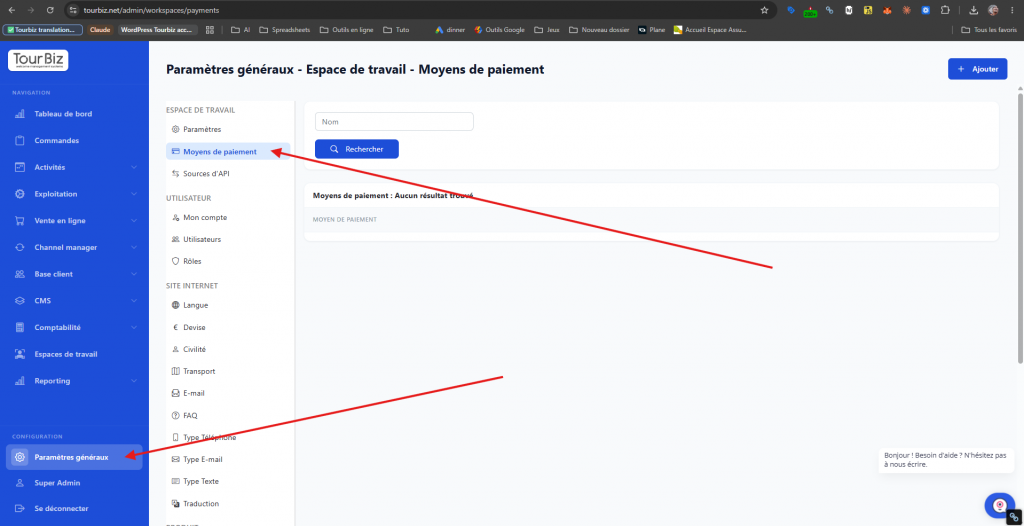
In the left menu, click General Settings (at the bottom), then in the Workspace submenu, click Payment methods.
Step 2 — Add a new payment method
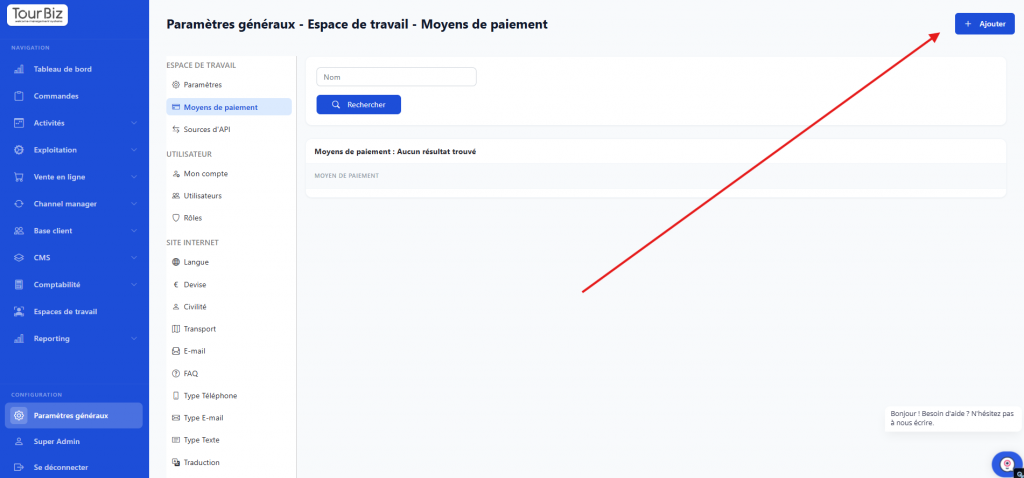
Click the + Add button (top right).
Step 3 — Choose Stripe Card

In the Payment methods field, open the dropdown and select Stripe Card.
Step 4 — Configure availability and currency
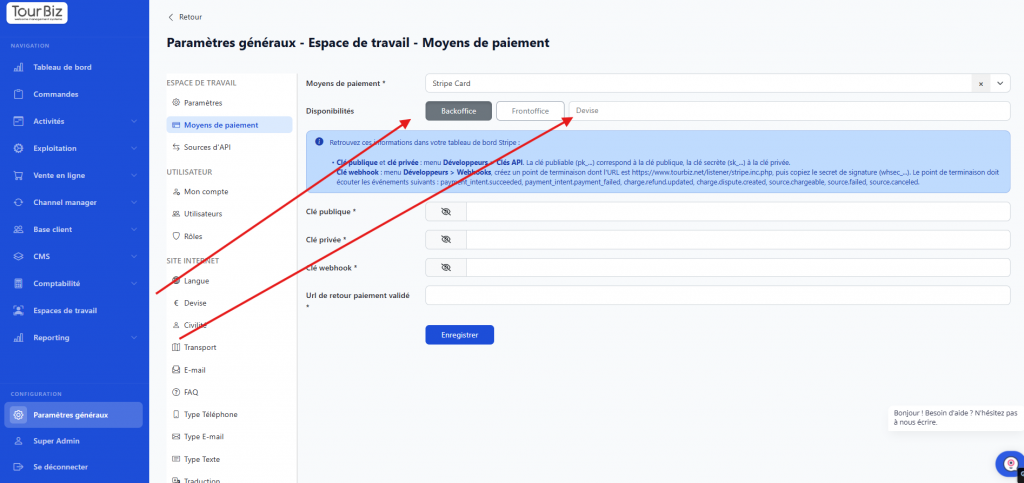
Once Stripe Card is selected, three options appear in the Availability field:
- Back office → enable if you want to use Stripe from the admin interface (e.g.: taking a booking by phone)
- Front office → enable if you want to offer card payment on your website (online cart)
- Currency → enter the desired currency (e.g.:
EUR)
You can enable one or both depending on your needs.
Step 5 — Retrieve and enter your Stripe keys
The form shows 4 fields to fill in. Find this information in your Stripe dashboard at dashboard.stripe.com:
🔑 Publishable key (pk_...)
Stripe: Developers > API keys menu → copy the publishable key (starts with pk_live_... or pk_test_...)
🔐 Secret key (sk_...)
Stripe: Developers > API keys menu → copy the secret key (starts with sk_live_... or sk_test_...)
🔗 Webhook key (whsec_...)
Stripe: Developers > Webhooks menu → click Add endpoint and set the URL as follows:
https://www.tourbiz.net/[YOUR-SLUG]/listener/stripe.inc.php
📌 How to find your SLUG? Just look at your TourBiz interface URL:
https://www.tourbiz.net/lesinventeurs/admin/...— the bold part between the first and second/is your slug. Replace[YOUR-SLUG]with that value.Example for Les Déménageurs:
https://www.tourbiz.net/lesdemenageurs/listener/stripe.inc.php
- Events to listen to:
payment_intent.succeededpayment_intent.payment_failedcharge.refund.updatedcharge.dispute.createdsource.chargeablesource.failedsource.canceled
Once the webhook is created, copy the signing secret (starts with whsec_...) and paste it into the Webhook key field.
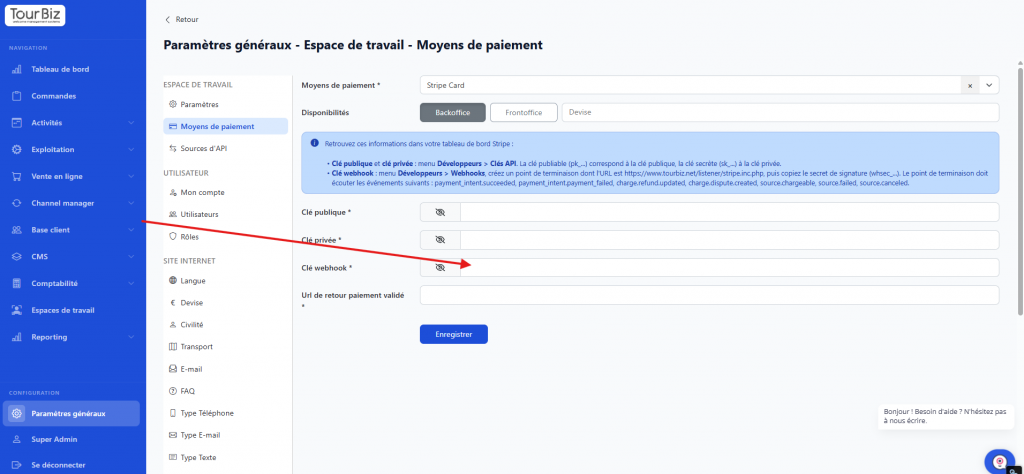
🔙 Payment success return URL
Enter the URL of your website’s confirmation page where the customer will be redirected after a successful payment (e.g.: https://www.mysite.com/payment-confirmation). This page must already exist on your site.
Step 6 — Save
Click the Save button. Your Stripe Card setup is now active!
💡 Tip: Before going live, first test with Stripe’s test keys (
pk_test_.../sk_test_...) to make sure everything works correctly.