Tourbiz automatically handles sending emails to your customers at every step of their journey. These emails use dynamic tags in curly braces — {TAG_NAME} — which the system replaces with the actual values when sending.
⚠️ Golden rule: Never remove a {…} tag without knowing exactly what it does. If in doubt, keep the tag and only edit the text around it.
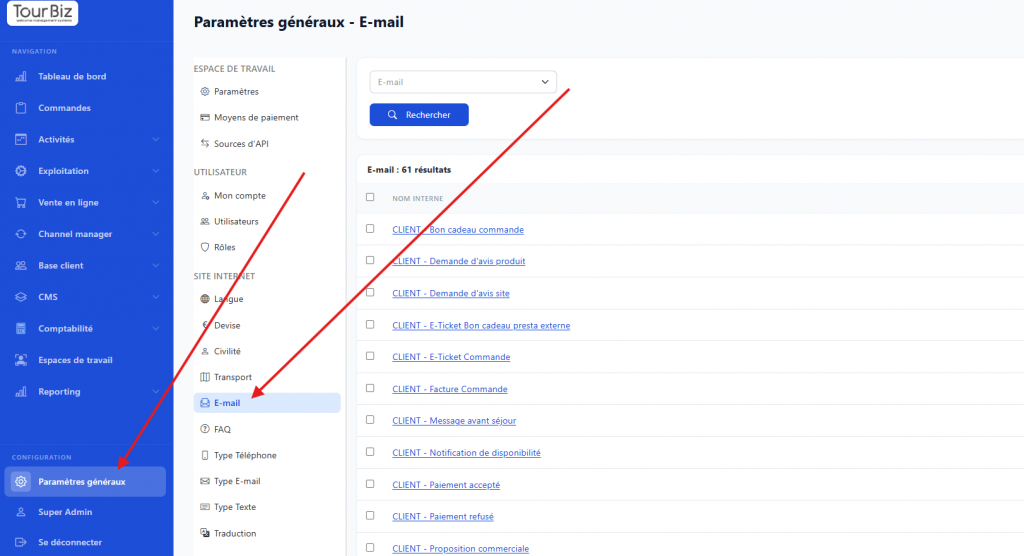
To configure your emails, go to General Settings, Email section:
Email types
Name
Trigger
Payment link
Payment confirmation
Payment accepted
No
Ticket delivery
E-tickets generated
No
48h reminder
48h before the service
No
Gift voucher
Gift voucher purchase
No
Invoice
Invoice generated
No
Payment declined
Payment failure
No
Order in progress
Abandoned cart (reminder)
⚠️ Yes
Finalize order
Quote or order to confirm
⚠️ Yes
Order modification
Balance still due
⚠️ Yes
Password reset
Reset request
No
Product availability
Product available again
No
Customer review
After the visit
No
Tag reference
Customer tags
Tag
Description
Type
{CUSTOMER_FIRSTNAME}
Customer’s first name
Automatic
{CUSTOMER_LASTNAME}
Last name
Automatic
{CUSTOMER_NAME}
Full name
Automatic
{CUSTOMER_EMAIL}
Customer’s email address
Automatic
{CUSTOMER_ID}
Internal customer number
Automatic
{CUSTOMER_PASSWORD}
Temporary password (reset only)
Automatic
Order and cart tags
Tag
Description
Type
{BASKET_SUMMARY}
Full cart summary table
Automatic
{BASKET_ROW_CUSTOMER_SUMMARY}
Simplified summary of one line
Automatic
{BASKET_AMOUNT}
Total order amount
Automatic
{BASKET_ID}
Transaction number / reference
Automatic
{ORDER_TOKEN}
Unique cart token — used in payment links
Automatic
Site and contact tags
Tag
Description
Type
{SITE_NAME}
Your shop’s name
Automatic
{WEBSITE_LINK}
Your site’s root URL
Automatic
{SITE_PHONE_NUMBER}
Contact phone number
Automatic
{SITE_CONTACT_EMAIL_ADDRESS}
Contact email
Automatic
{SITE_HEADQUARTER_ADDRESS_NEWLINE}
Head office postal address
Automatic
Product, agent, and other tags
Tag
Description
Type
{PRODUCT_NAME}
Name of the product / activity
Automatic
{ADVISOR_NAME}
Name of the agent in charge
Automatic
{ALERT_MESSAGE}
Alert message at the top of the email
Customizable
{PROMO_IN_EURO}
Discount amount (€)
Automatic
{GIFT_CARD_AMOUNT}
Gift voucher amount
Automatic
{GIFT_CERTIFICATE_EXPIRATION_DATE}
Gift voucher expiration date
Automatic
{CUSTOMER_CLORIAN_TICKET}
Clorian ticket download block
Automatic
{CHANGE_PASSWORD_LINK}
Password reset link (valid 24h)
Automatic
{CREATE_PASSWORD_LINK}
Password creation link (valid 24h)
Automatic
⚠️ Payment links — critical section
Three emails contain a Pay for order button: Order in progress, Finalize order, and Order modification. This button is always built on this pattern:
{WEBSITE_LINK}/cart/?order_token={ORDER_TOKEN}
It breaks down into two parts:
Part
Editable?
Explanation
{WEBSITE_LINK}/cart/
⚠️ If needed
Path to your cart page. Adjust if your slug is different from /cart/
?order_token={ORDER_TOKEN}
🔒 Never
Identifies the customer’s cart. Without this token, the link won’t work
Case 1 — Your cart page is at /cart/ (default)
✅ No changes needed. The link works as is.
{WEBSITE_LINK}/cart/?order_token={ORDER_TOKEN}
Case 2 — Your cart page is at a different slug
⚠️ Important: If you don’t change the slug and your cart isn’t at /cart/, the customer will land on a non-existent page (404 error) and won’t be able to pay for their order.
💡 How to find your slug? Add a product to the cart on your site and look at the URL in your browser. For example, if the URL is https://mysite.com/my-cart/, your slug is /my-cart/.
In all three cases, replace /cart/ with the actual slug of your cart page if it differs. Don’t touch anything else.
How to edit your Emails?
Nothing could be simpler! In Tourbiz, all the important transactional emails are pre-configured.
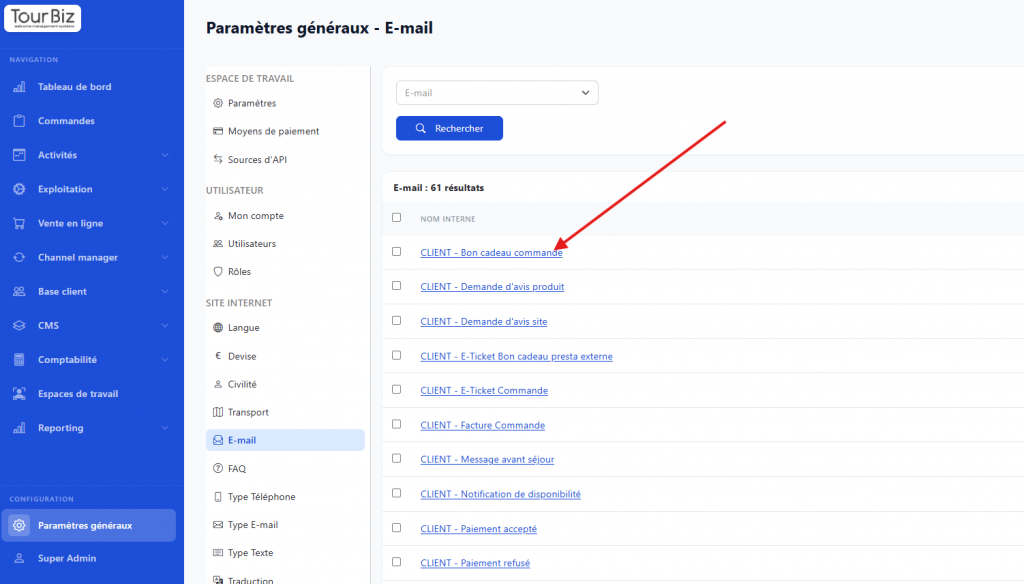
Select the pre-configured email you want to edit by clicking on it.
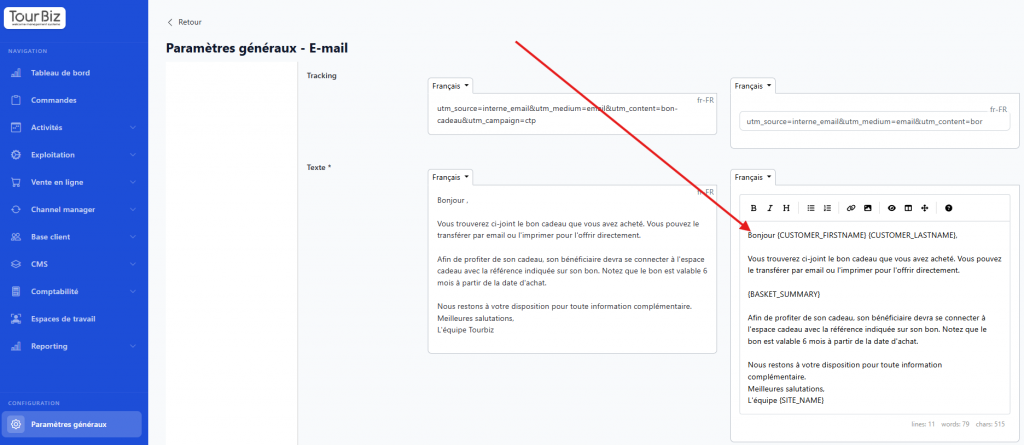
Once open, you can edit your text, following closely the tag and slug guide presented above:
Best practices
What you can freely edit
The text around the tags (greetings, phrasing, tone)
The button label (e.g.: “Pay for my order,” “Finalize my booking”)
The order of paragraphs
Adding legal notices, terms & conditions, practical information
The signature (team name, contact details)
What you should not edit
The {…} tags themselves (exact spelling, correct case)
The ?order_token={ORDER_TOKEN} part in payment links
The password reset / creation links ({CHANGE_PASSWORD_LINK}, {CREATE_PASSWORD_LINK})
⚠️ Watch the case:{CUSTOMER_FIRSTNAME} and {customer_firstname} are not equivalent. Always copy-paste tags from this document to avoid typos.
✅ Tip: after each change, place a test order to check that the emails display correctly and the links work. Always test the payment button on the emails that include one.