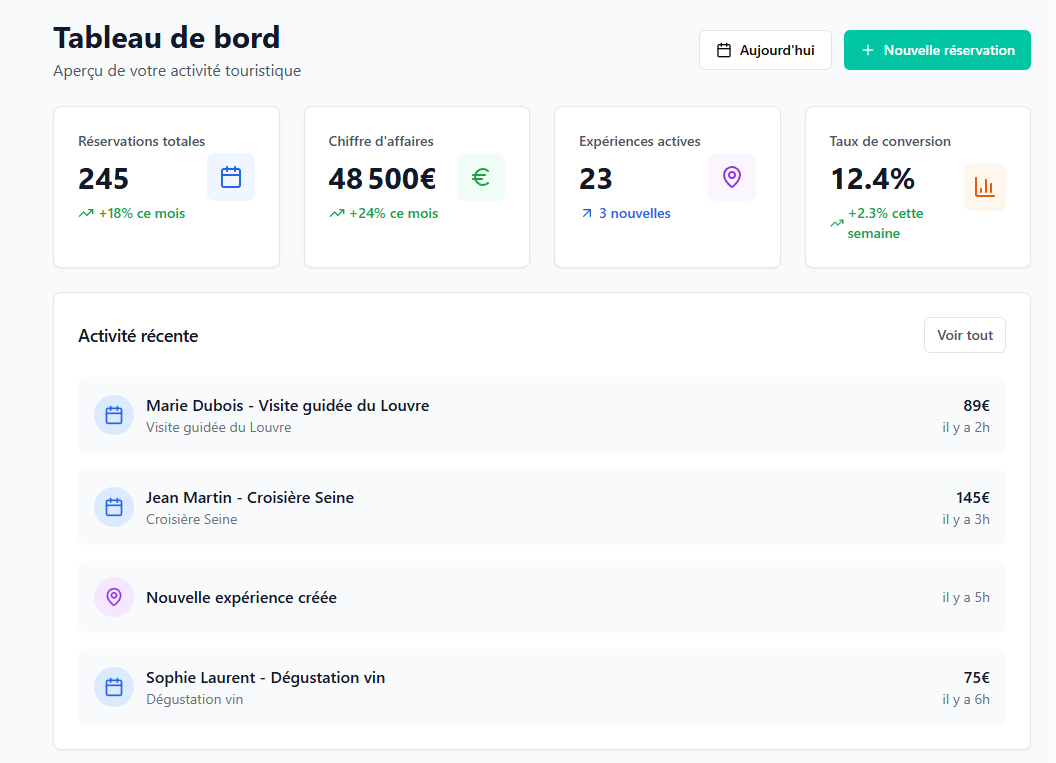
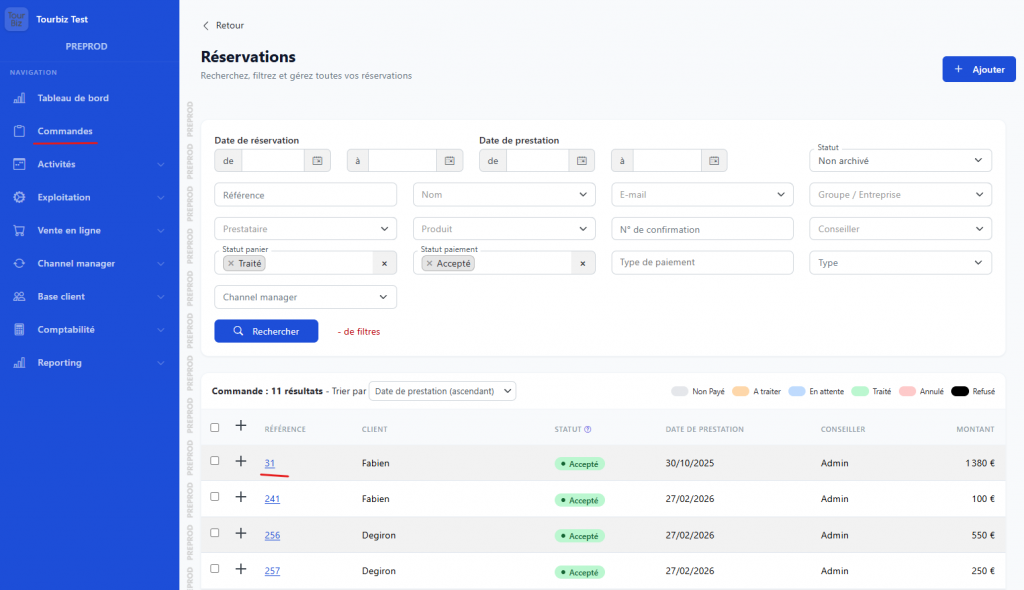
From the Bookings panel, find the row of the order in question and click the number in the Reference column (for example «79»). You’ll land on the Order sheet.
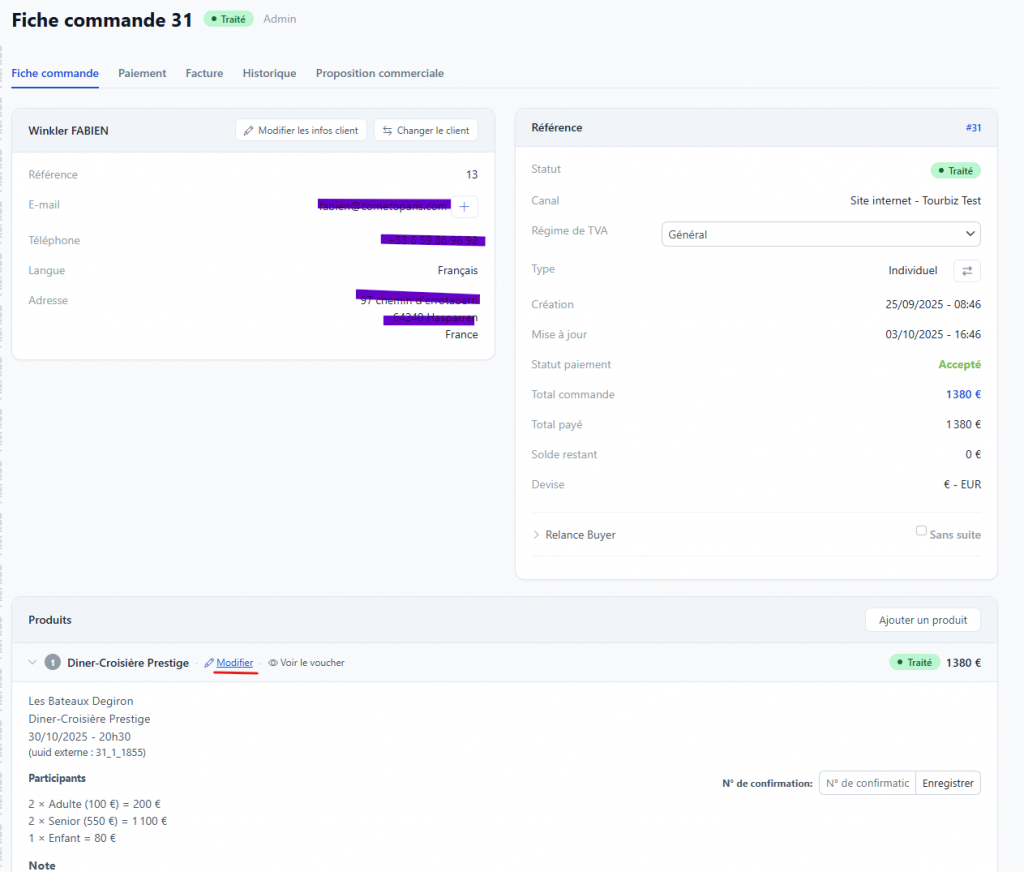
Step 2 — Edit the cart line
On the order sheet, scroll down to the Products block. Next to the product line, click the Edit link. You’ll reach the «Edit [no.] – Cart detail» screen.
Step 3 — Set the status to «Cancelled»
At the top right of the cart line, open the status dropdown (which shows, for example, «Processed»). From the list, select Cancelled.
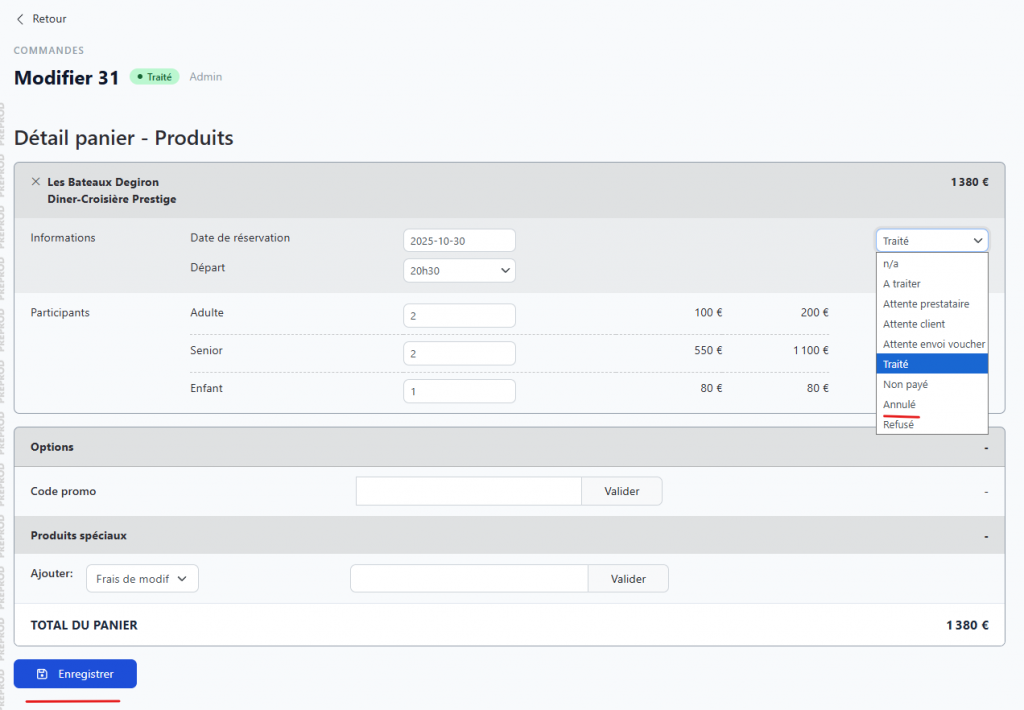
Step 4 — Save
Scroll to the bottom of the page and click the Save button to confirm the cart line’s status change.
Step 5 — Additional actions
Once the line is cancelled, you can carry out the following actions as needed:
Add a new cart line — if you need to replace or add a service, use the Add a product option in the Products block of the order sheet.
Refund the customer — go to the Payment tab (at the top of the order sheet, next to «Order sheet»), then cancel the payment(s) associated with the order to process the refund.