Goal: after a component product has been booked, the operator must assign the actual components to the event through the operational Planning. This step completes the cycle: the customer has their confirmation, the operator organises the programme.
Prerequisite: the parent product exists with its component blocks (Block 2). An order has been recorded on this product.
1. Default state of an order with components
When an order is created on a component product, it is automatically confirmed to the customer — exactly like a standard order.
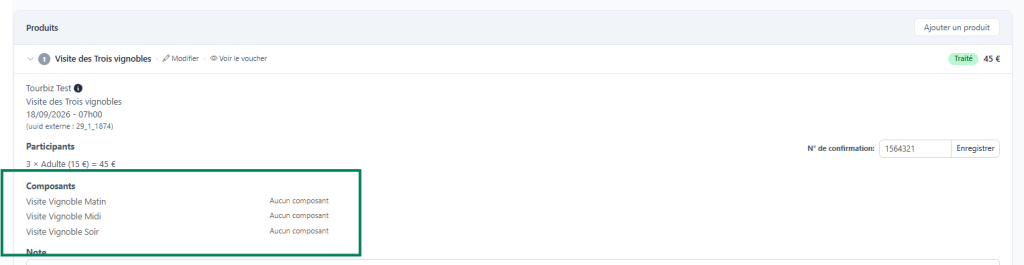
However, in the order record, the component blocks show “No component”: the actual components have not been assigned yet. This is not a problem — it is the normal behaviour.
💡 The philosophy of component products: by using this type of product, you make a promise to the customer: they will have a quality experience. You guarantee that you will find the right components before the service date. Only use component products if you can keep that promise. If not, prefer a standard product with a fixed programme.
2. Find the event in the operational Planning
Sales on a component product generate events in the operational Planning, available via Operations > Planning.
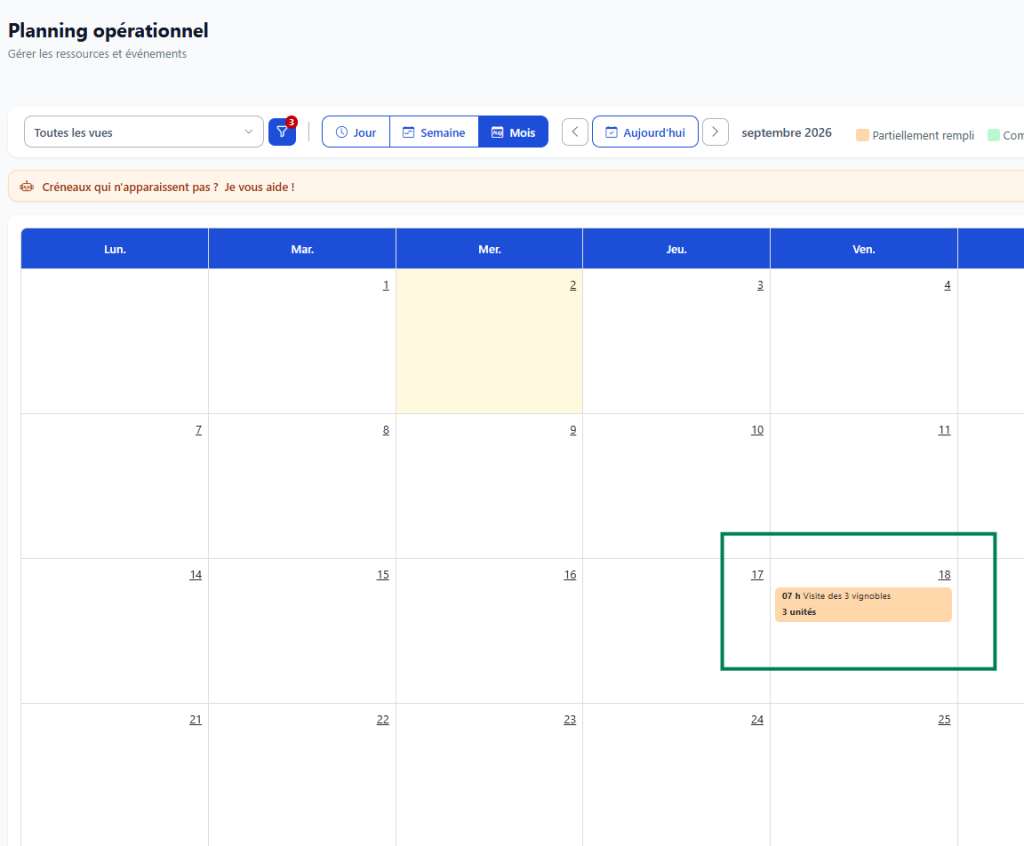
On the calendar, find the event matching your service and click on it. A pop-up window opens with the event information.
3. Open the event’s Components tab
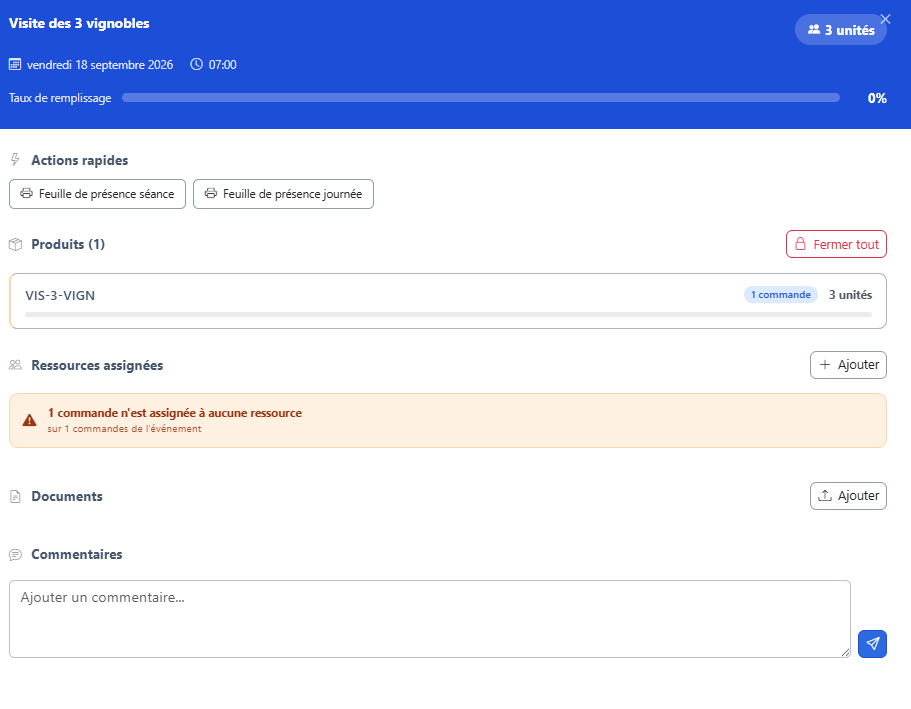
In the event pop-up, click on the product name (e.g. VIS-3-VIGN — Three vineyards tour). The event’s product record opens.
Click on the Components tab.
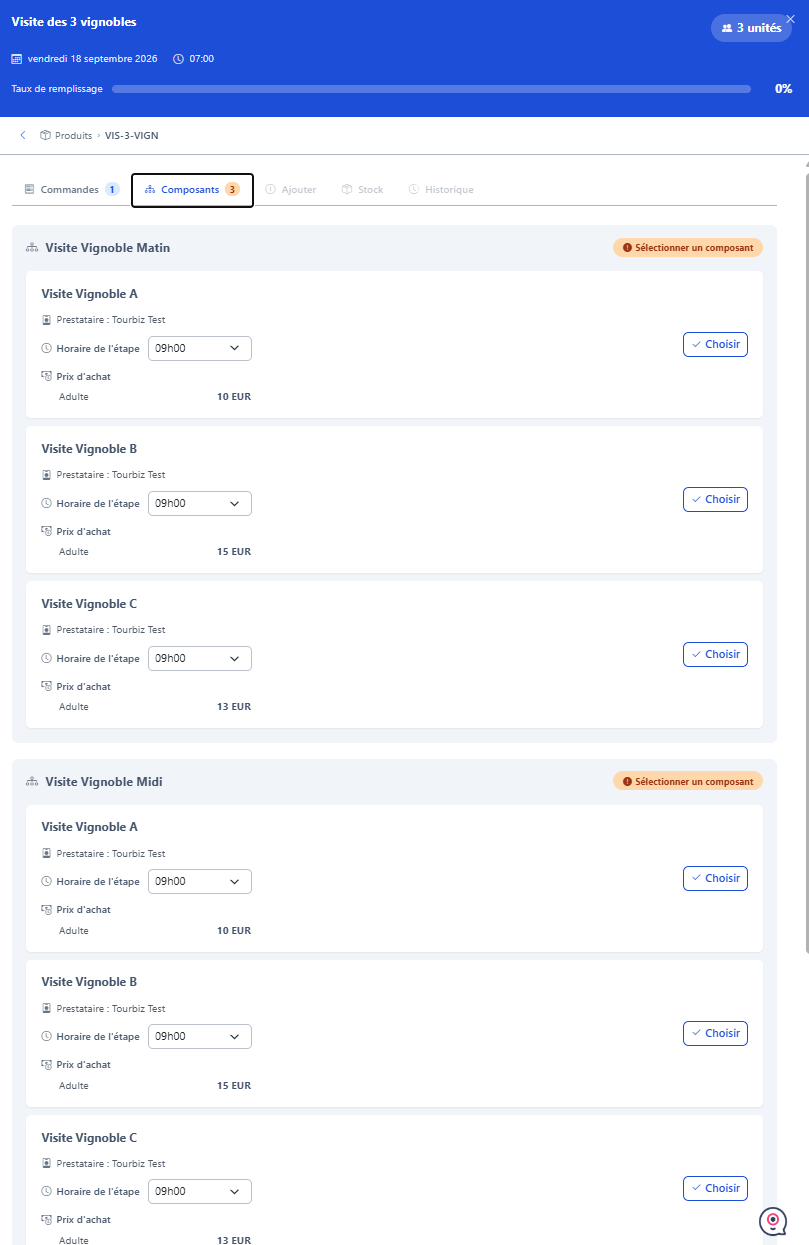
Each block shows:
- The components available for this block (Vineyard A, Vineyard B, Vineyard C…)
- For each component: its purchase price per price type (Adult, Child…)
- A Step time field to enter the planned time for this step of the programme
- A Choose button to select the chosen component
4. Choose one component per block
For each block, fill in the following information:
1. Step time — enter the planned time for this visit (e.g. 09:00 for the morning visit).
2. Click Choose next to the chosen component.
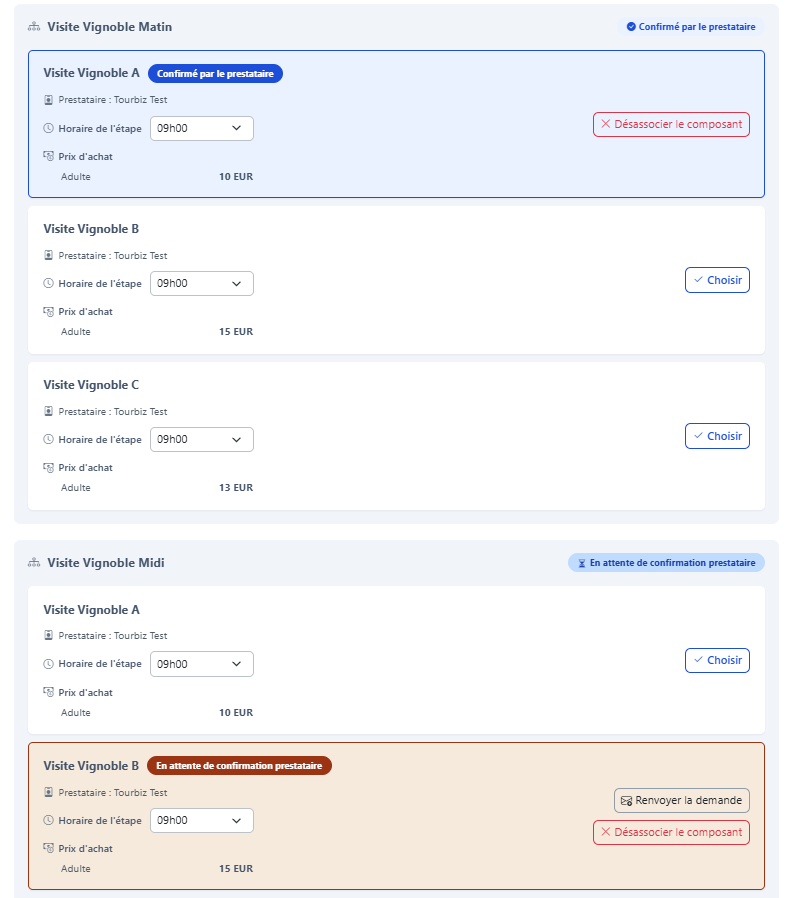
Repeat for each block of the programme.
5. The two validation modes
Depending on the setup of each component (see Block 1 — Order validation mode), what happens after clicking Choose differs:
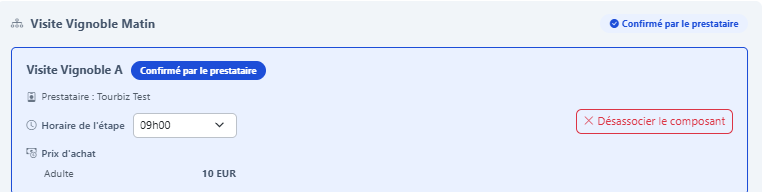
Mode 1 — Open-sale component
The component is validated immediately and automatically. No further action is required. The component goes straight to Confirmed by the supplier status (blue badge), with the Unlink button available.
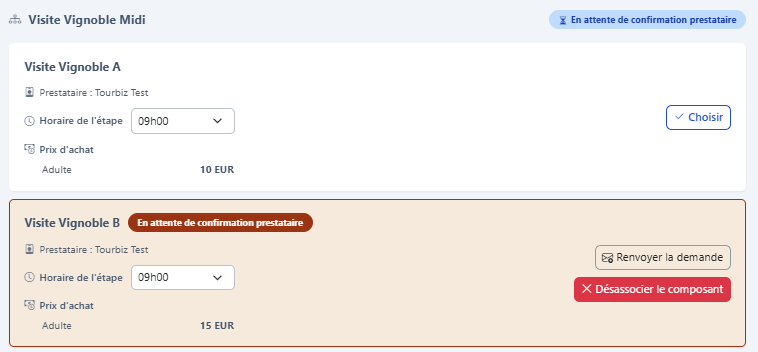
Mode 2 — Component with supplier confirmation request
An email is automatically sent to the supplier with a link allowing them to accept or decline the service. The component switches to Awaiting supplier confirmation status (orange badge).
⚠️ Safeguard: you cannot choose a component in “supplier confirmation request” mode if the linked supplier has no contact with an email address set up in Tourbiz. An error message blocks the selection. Solution: first add an email contact to the supplier concerned.
💡 Resend the request: if the supplier has not received or answered the confirmation email, you can remind them with the Resend the request button available on the pending component.
6. Unlink a component (change possible)
As long as the service date has not passed, you can change your choice by clicking Unlink.
The component goes back to “not assigned” and you can choose another one.
💡 This flexibility lets you adjust the programme up to the last minute if a supplier becomes unavailable.
7. Automatic update of all orders
⚡ Key point: components are assigned at event level, not order by order.
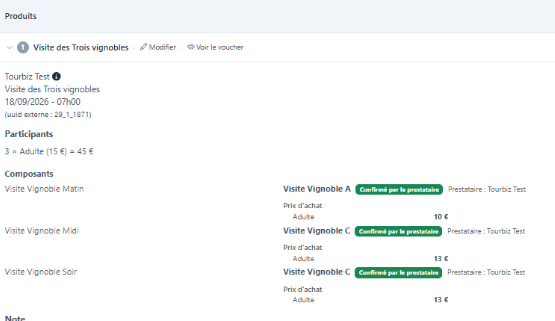
Once you have chosen your components on an event, all orders linked to that event are updated automatically. If 12 customers booked the same 18 September outing, the 12 orders will all show the assigned components at once — with no further action.
Flow summary
Operations > Planning
  └── Click on the event
        └── Click on the product (e.g. VIS-3-VIGN)
              └── Components tab
                    └── For each block:
                          ├── Step time: e.g. 09:00
                          ├── Choose → component selected
                          │     ├── Open sale → Confirmed immediately ✅
                          │     └── Confirmation request → Email to supplier 📧
                          │           ├── Awaiting confirmation (orange badge)
                          │           └── Resend the request (if needed)
                          └── Unlink → change before the service date

⚡ Result: all orders of the event are updated
Complete cycle of component products:
- Block 1 — Create the components in the Component catalogue
- Block 2 — Create the parent product and link the component blocks to it
- Block 3 — (this block) Assign the components in operations