Goal: understand what a component is, why it differs from a standard product, and know how to create it properly in Tourbiz (purchase prices, price types, VAT).
Why component products?
A component product is not a package. It is a parent product (e.g. Loire Valley Châteaux day) whose sub-services are chosen by the operator after booking, according to availability.
Concrete example: a customer books a vineyard day. They know they will visit three vineyards and have lunch in a typical restaurant. But which one? The operator will decide before the service date, depending on the estates’ availability.
This approach brings benefits at three levels:
| Dimension | Benefit |
|---|---|
| Sales | The customer receives their confirmation immediately — no resource is blocked at the time of booking |
| Operations | Guides and drivers know the exact programme before the service date |
| Purchasing | The real purchase costs are recorded according to the components actually chosen (e.g. Vineyard A at €12/pers ≠ Vineyard B at €18/pers) |
1. Access the Component catalogue
In the navigation menu, click Activities, then Component catalogue.
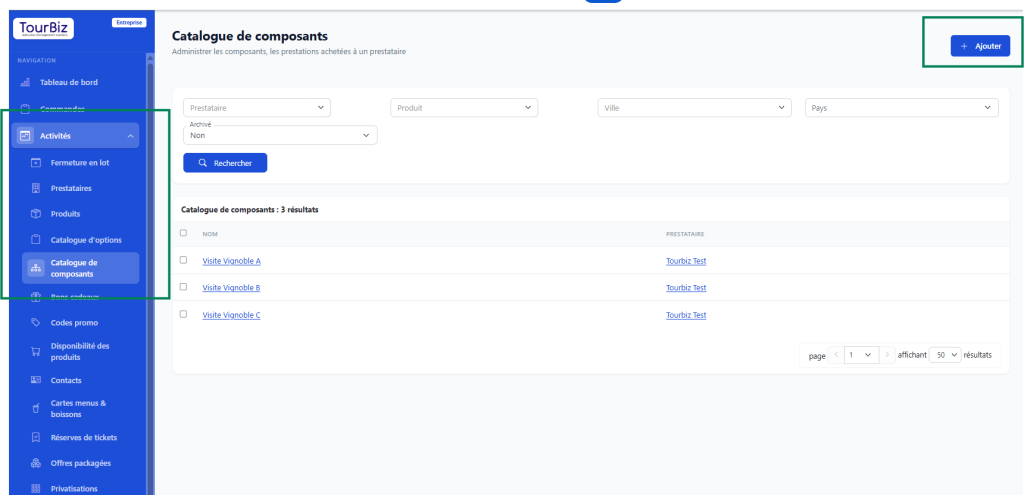
The page lists all existing components. If none exist yet, the list shows “0 results”.
2. Create a new component
Click + Add at the top right.
The creation form opens on the Information tab.
3. Information tab
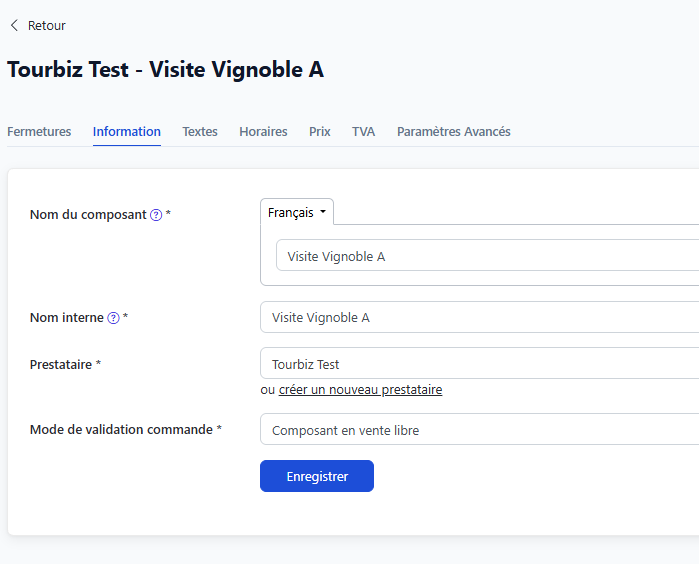
| Field | What to enter |
|---|---|
| Component name | Displayed name (multilingual possible). E.g. Vineyard A visit |
| Internal name | Short label for internal use (can be identical) |
| Supplier | The provider of the service |
| Order validation mode | Defines how the component is confirmed when it is assigned in operations (see details below) |
Order validation mode — two options
This field determines what happens when the operator assigns this component to an event in operations (Block 3).
Option 1 — Open-sale component
The component is validated immediately and automatically as soon as it is selected in operations. No confirmation is requested from the supplier. This is the mode to use for trusted suppliers whose availability is guaranteed (OPEN SALE).
Option 2 — Component with supplier confirmation request
When the operator chooses this component, Tourbiz automatically sends an email to the supplier with a link allowing them to accept or decline the service. The component remains in “Awaiting supplier confirmation” status until they reply.
⚠️ Essential prerequisite: the supplier must have a contact with an email address set up in Tourbiz. If not, a safeguard prevents the component from being selected in operations. Add an email contact to the supplier first before using this mode.
💡 If there is no reply, the operator can remind the supplier with the Resend the request button available on the pending component.
Click Save before moving on to the other tabs.
4. Times tab — Do not configure
It is not recommended to enter times on a component.
Why? The component sits inside an overall service that has its own times. For example: the main product has a bus departure at 7 am, but the vineyard visit starts at 9 am. The component’s times are therefore different from those of the parent product.
💡 Times per component are managed in operations, through multi-times, when assigning resources to the event.
5. Prices tab — Purchase prices only
This is the most important tab for a component.
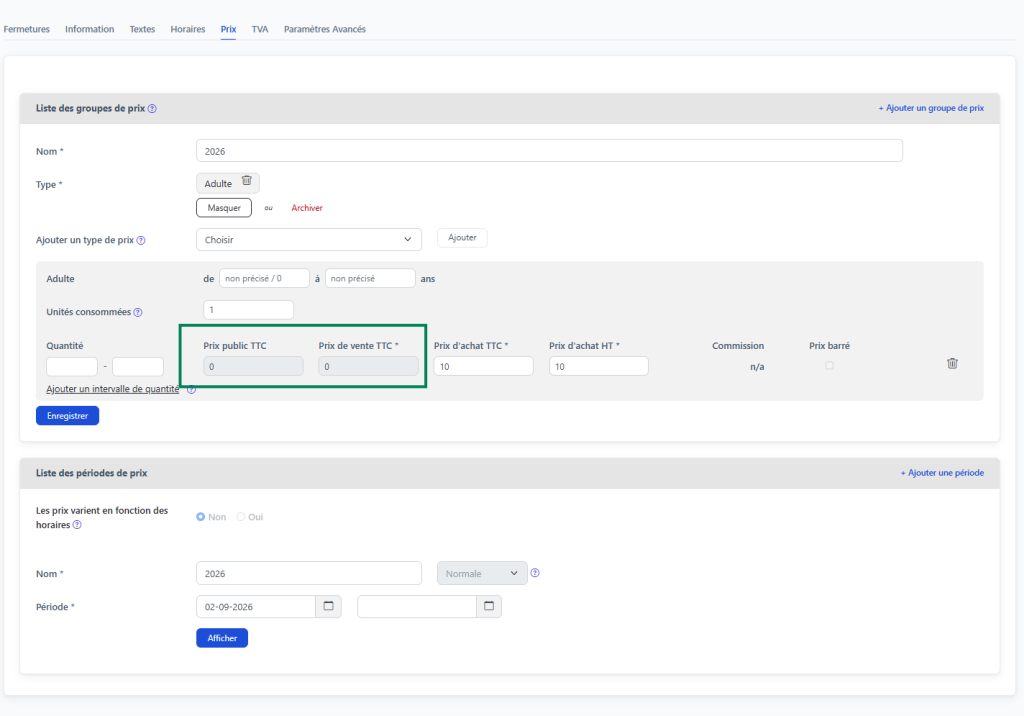
You will notice that Public price incl. VAT and Selling price incl. VAT are greyed out and stay at 0. This is intentional: the selling price is carried by the main (parent) product, not by the component.
Only the Purchase price incl. VAT and Purchase price excl. VAT fields need to be filled in.
⚠️ Critical rule: price types must match the main product
The price types of the price group (Adult, Child, Group, etc.) must be identical to those set up on the parent product.
Why is it essential? When a component is selected in operations, Tourbiz calculates the purchase cost by matching the quantities sold on the order with the component’s purchase rates by price type. If your order contains 3 Adults and 2 Children, but the component only has an Adult rate, the purchase calculation will be incomplete or wrong for the children.
Example: Vineyard A → €12/adult purchase. Vineyard B → €18/adult purchase. The margin made on a day is not the same depending on the vineyard chosen. Tourbiz can only calculate this difference if the price types match.
6. VAT tab — Essential
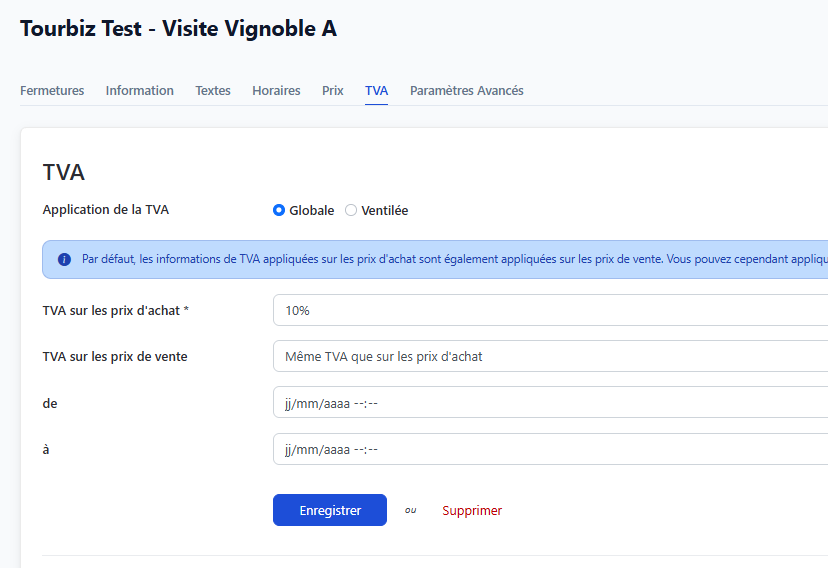
Setting up VAT on a component is mandatory for purchase accounting to be correct.
| Field | Description |
|---|---|
| VAT application | Global (a single rate) or Split (different rates by price bracket) |
| VAT on purchase prices | Rate applicable to this supplier for this service |
| VAT on selling prices | By default, identical to purchases — can be changed if needed |
Why is it critical? Two components can have different VAT rates depending on their nature:
- Visit to a public museum → 0% VAT
- Visit to a private museum → 10% VAT
If VAT is not set on each component, the purchase accounting entries will be wrong as soon as the operator assigns a component to an order.
💡 The VAT rule can be limited in time (from / to fields). For a permanent rule, leave these fields empty.
7. Create the other components
Repeat steps 2 to 6 for each component in the catalogue. For our example:
| Component | Purchase price excl. VAT | VAT |
|---|---|---|
| Vineyard A visit | €12 | 10% |
| Vineyard B visit | €18 | 10% |
| Vineyard C visit | €15 | 0 %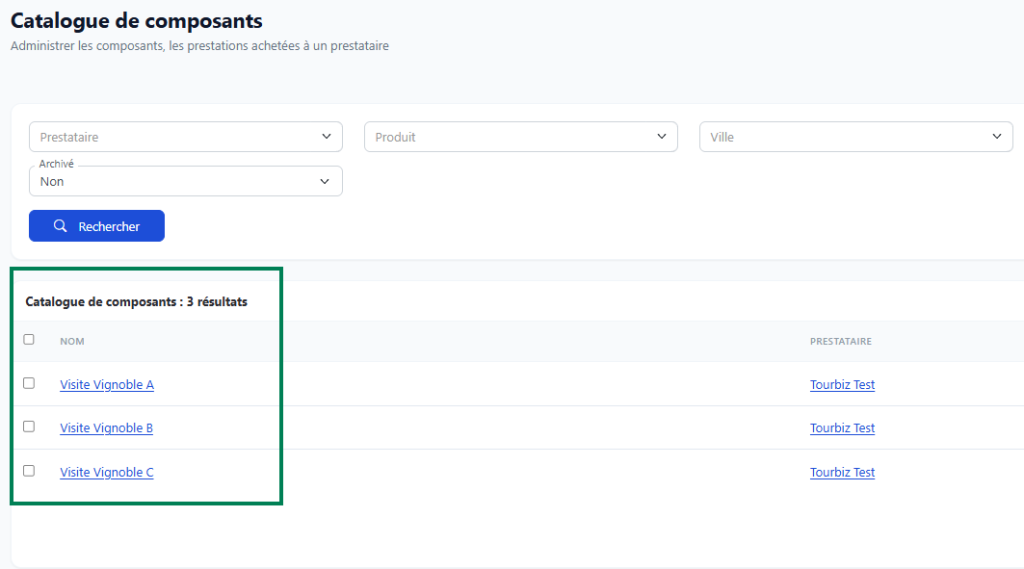 |
Flow summary
Activities > Component catalogue
  └── + Add
        ├── Information : Name + Supplier + Validation mode
        ├── Times       : do not configure (handled in operations)
        ├── Prices      : Purchase price only
        │                 ⚠️ Price types = same as the parent product
        └── VAT         : purchase rate mandatory for each component
Next step → Block 2: create the main product and link the components to it.