This guide walks you step by step through creating an order manually in Tourbiz, from selecting the product to confirming payment. This feature is especially useful for entering bookings taken by phone, in person, or via a channel that isn’t connected.
Journey summary
Here are the 5 main steps to create an order in Tourbiz:
- Bookings → + Add: access the search form
- Select the product (supplier + product + optional filters) then Search
- Choose the date, time, and participants, then Add to cart
- Enter and save the customer information
- Add a payment → the Order sheet is generated
Where to find order creation?
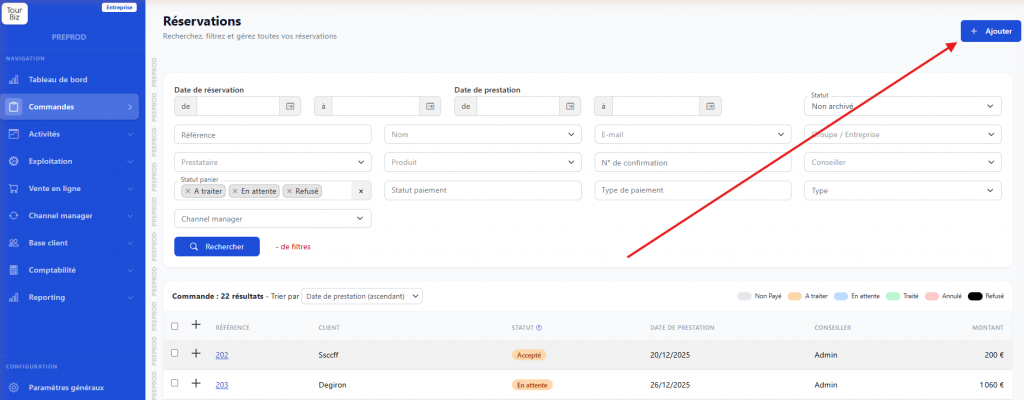
In the left menu, click Bookings. You’ll land on the list of bookings. At the top right of the screen, click the + Add button.
Step 1 — Search for a product
You’ll land on the “New order” page with four filter fields:
- Supplier: select the relevant supplier from the dropdown (e.g.: Les Bateaux Degiron).
- Product: type a few letters to filter the list and select the desired product (e.g.: 1h Tour).
- Partner (optional): if the sale is tied to a specific reseller or partner, select it here.
- Currency: EUR by default, editable if needed.
Once your filters are set, click Search.
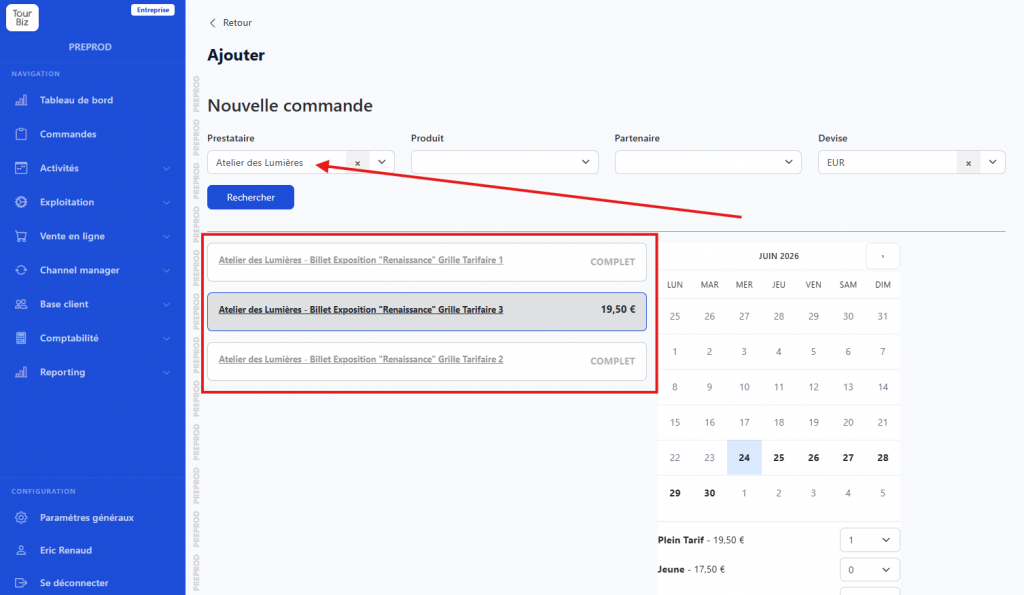
💡 Tip: you can run a search without specifying a supplier or product to display the full available catalog.
Step 2 — Choose the date and participants
After the search, the matching product(s) appear on the left, with their rate. A calendar is shown on the right.
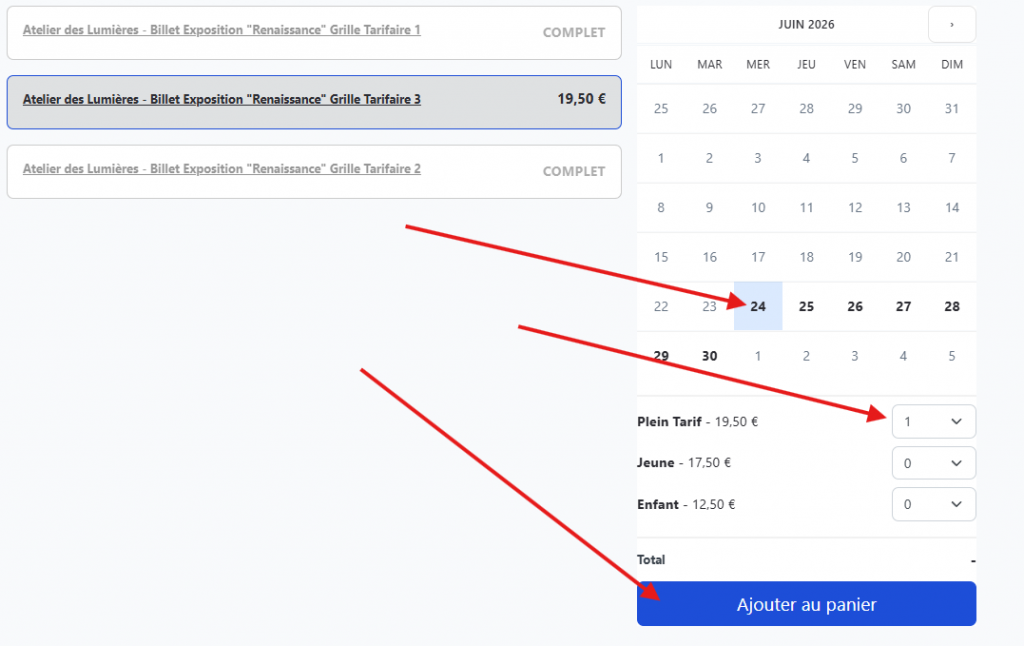
Click the desired service date on the calendar. If the product offers several time slots, a “Choose a time” dropdown appears: select the desired slot.
Then adjust the number of participants per rate category (e.g.: 1 × Adult = €14). The total updates automatically.
Click Add to cart.
💡 Tip: if you need to add several products to the same order, you can do so from the cart summary using the “+ Add a product” button.
Step 3 — The cart summary
You’ll automatically land on the “Pay” page (an order number is assigned immediately, e.g.: #818).
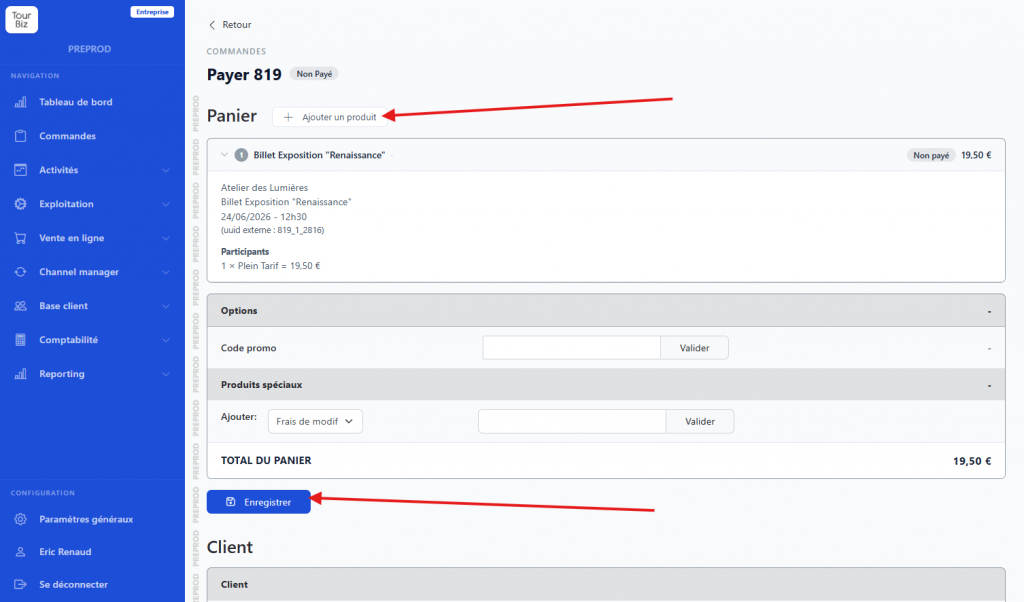
This page shows:
- The details of the added product(s) (supplier, date, time, participants, payment status).
- The Options section with a Promo code field: enter a code if applicable and click Apply.
- The Special items section: lets you add modification fees or other extras.
- The Cart total.
You can go back at any time to edit the cart’s contents or cancel it.
Step 4 — Enter customer information
Scroll down the page to reach the Customer section.
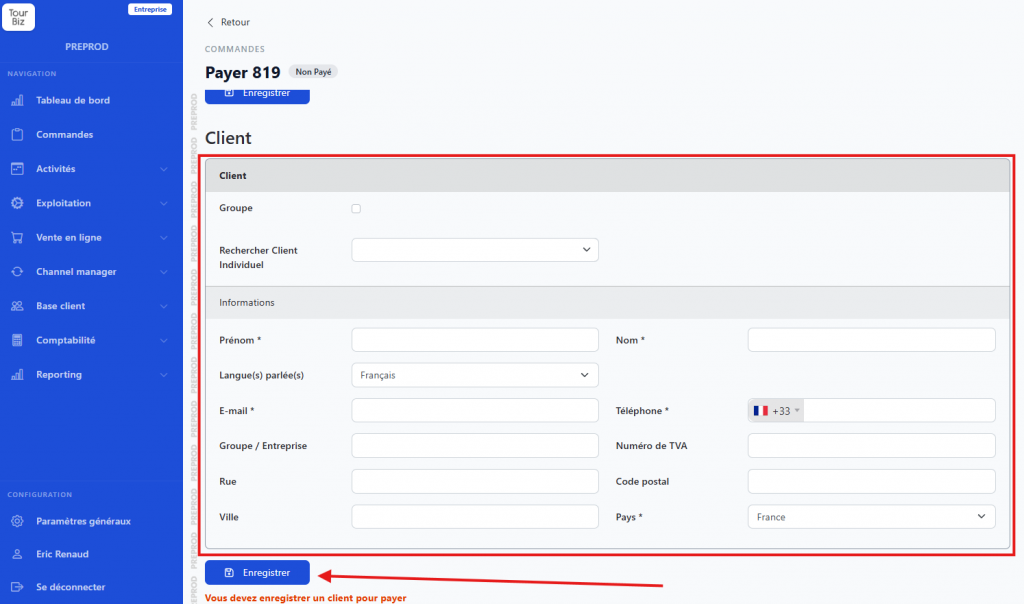
You can either:
- Search for an existing customer in the database via the Search Individual Customer field (or check Group for a company),
- or create a new customer by filling in the fields:
- First name * and Last name *
- Email *
- Phone *
- Language(s) spoken
- Address (Street, Postal code, City, Country)
Once the information is filled in, click Save. The customer is now attached to the order.
⚠️ Important: you must save the customer before you can add a payment. Until this step is done, the payment button stays inaccessible.
Step 5 — Add a payment
Scroll down to the Payment section. There you’ll see the financial summary: payment status, order total, total paid, and remaining amount.
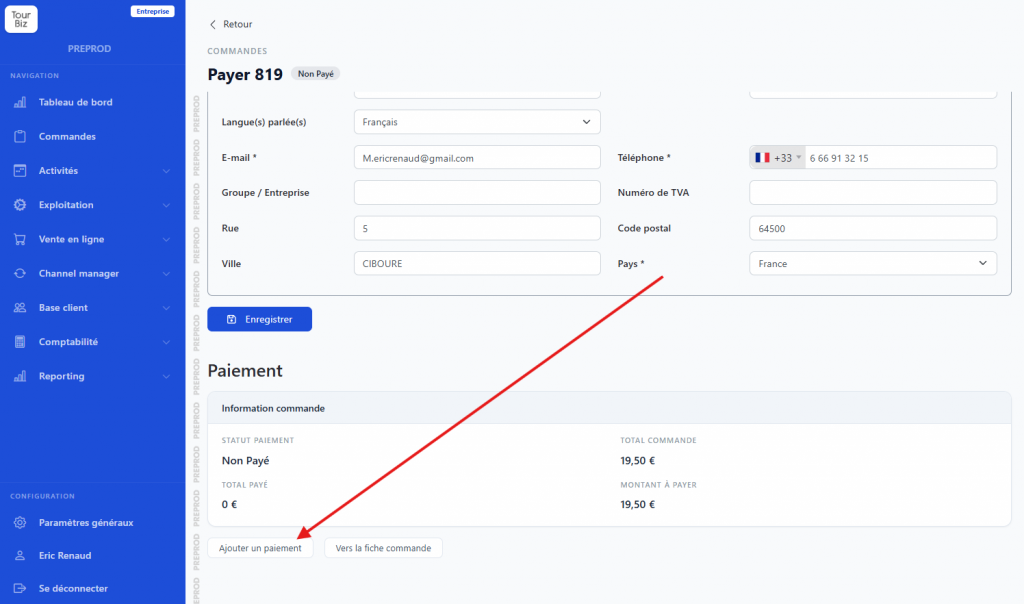
Click Add a payment. A form appears with:
- Credit/Gift voucher (optional): if the customer is using a credit or gift voucher, select it here.
- Payment platform: choose the payment method from the available options (e.g.: On site, Bank transfer, Revolut Card, etc.).
- Status: Accepted by default.
- Date: pre-filled with today’s date.
- Amount: pre-filled with the remaining balance (editable for a partial payment).
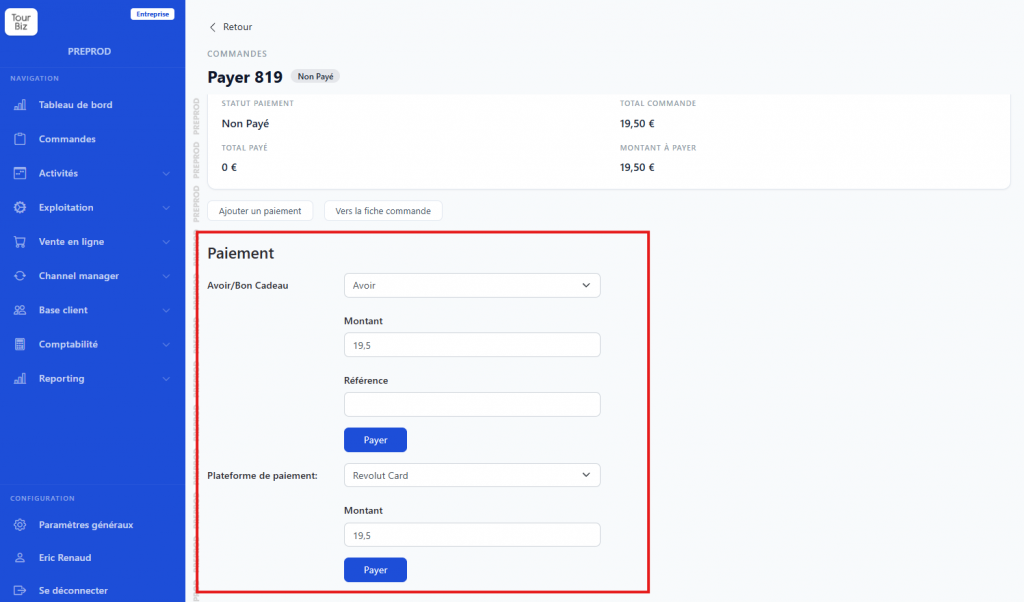
Click Add a payment to confirm.
Result: the Order sheet
Once the payment is confirmed, you’re automatically redirected to the Order sheet. It summarizes all the information:
- Customer information (name, email, phone)
- Order reference (#818 in our example)
- Status: To process (the service hasn’t taken place yet)
- Channel: Offline order (manual entry)
- Payment status: Accepted
- Total paid: €14 / Remaining balance: €0
The order sheet then lets you carry out other actions: edit the product, send the voucher to the customer or the supplier, enter a confirmation number, add files, or check the History tab to track events related to the order.